Option Configuration
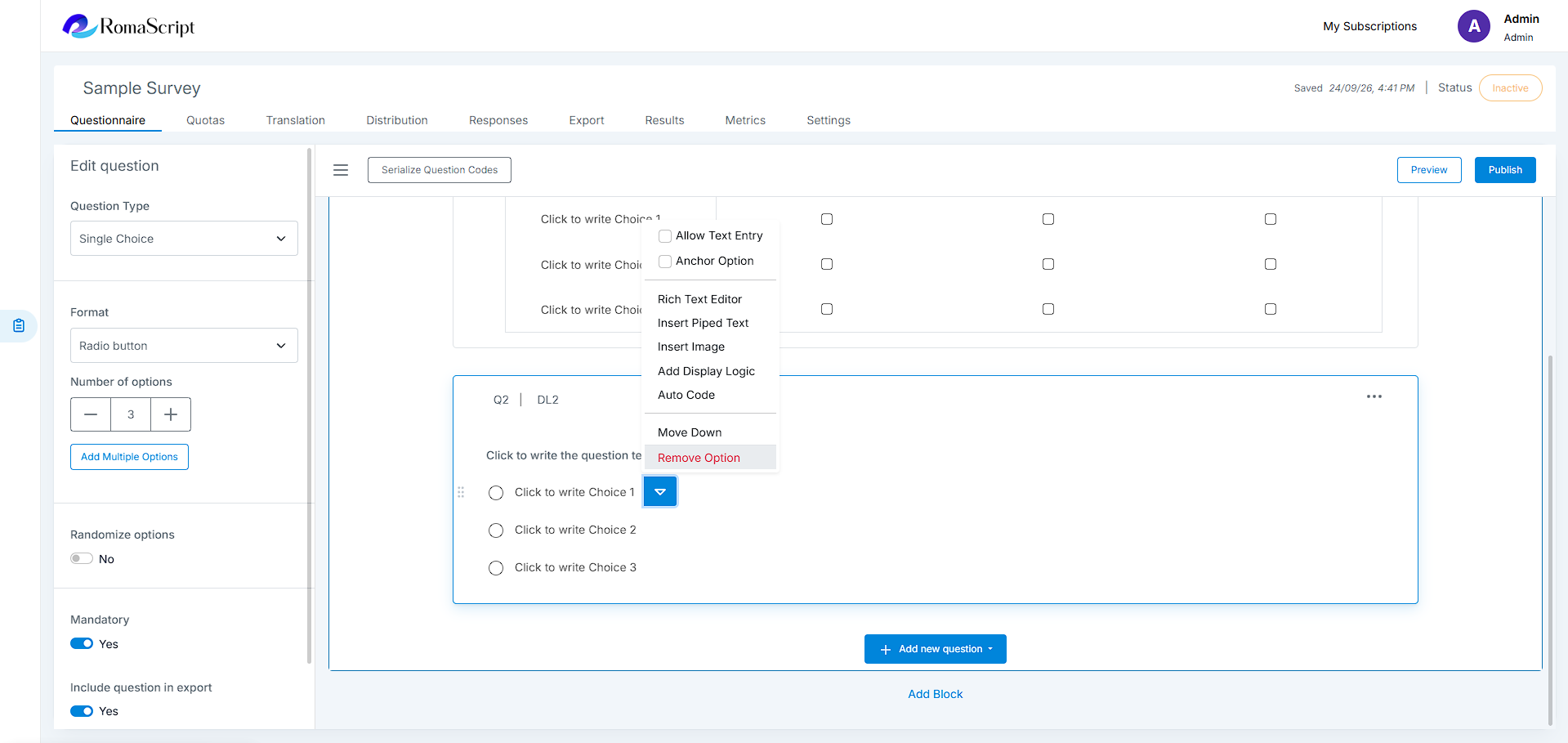
Use option-level controls to manage how answer options are displayed, formatted, randomized, and handled during response collection.
Option Randomization
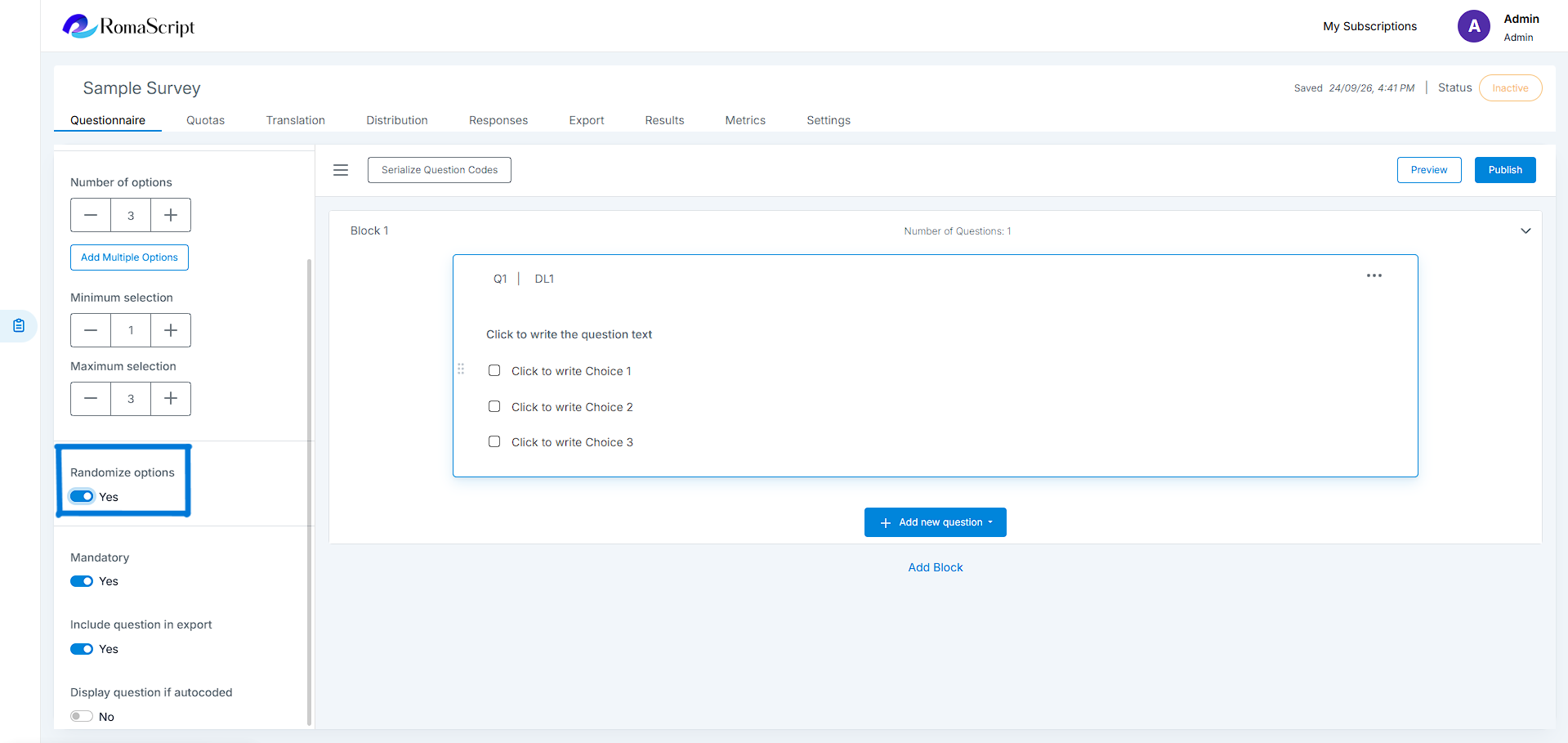
Randomize the order of answer options to eliminate order bias and ensure more reliable data.
Use cases
- Randomize brand names to avoid position bias
- Rotate response options while keeping ‘Other’ or ‘None’ anchored
- Ensure balanced exposure in A/B testing scenarios
Option Settings
RomaScript provides several option-level settings to customize answer options and control how they behave during response collection. These settings are available depending on the question type and can be accessed from the option menu.
Add Multiple Options
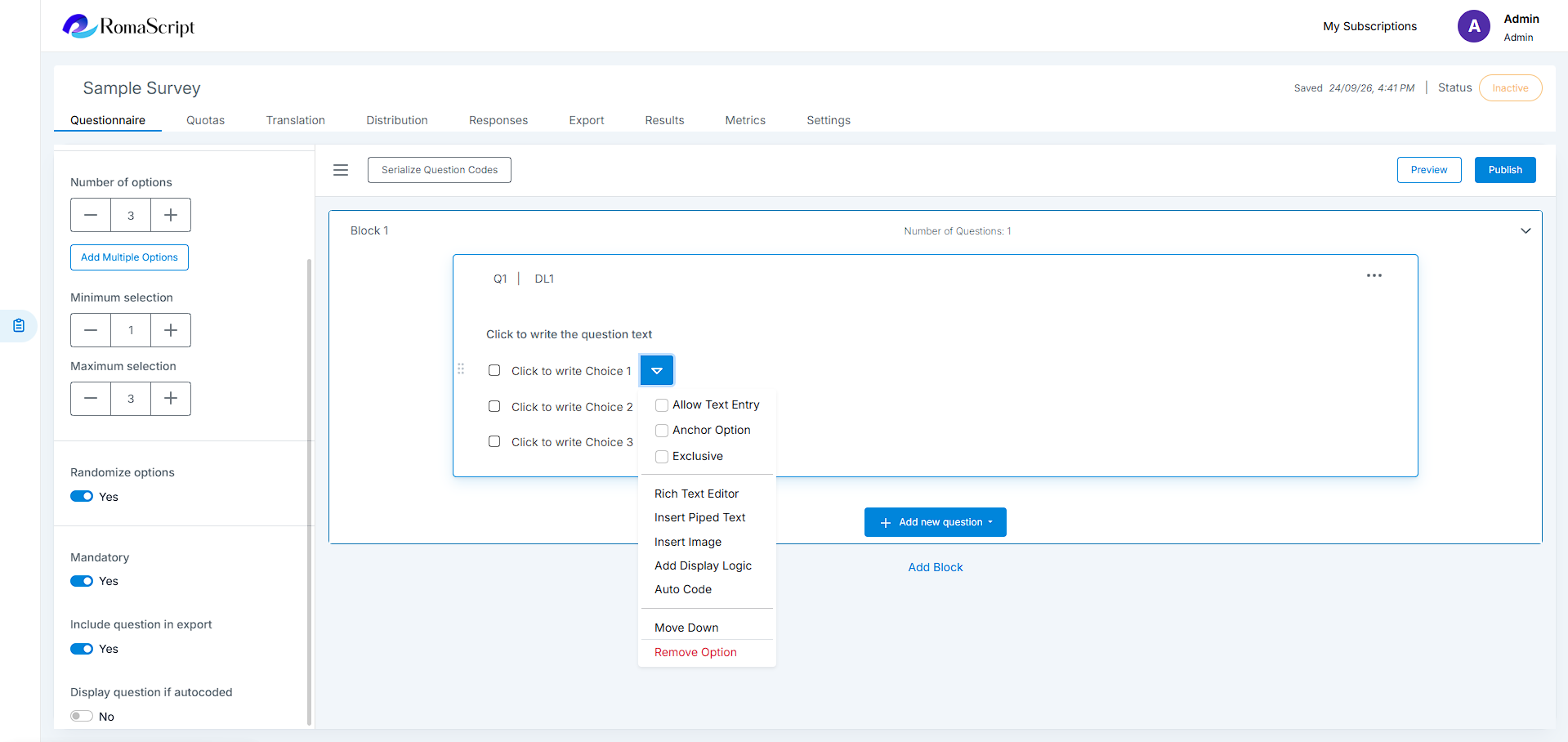
Add multiple options in bulk. You can either add options after the existing options or replace the entire set of options.
Note
Available for question types that support options.
Allow Text Entry
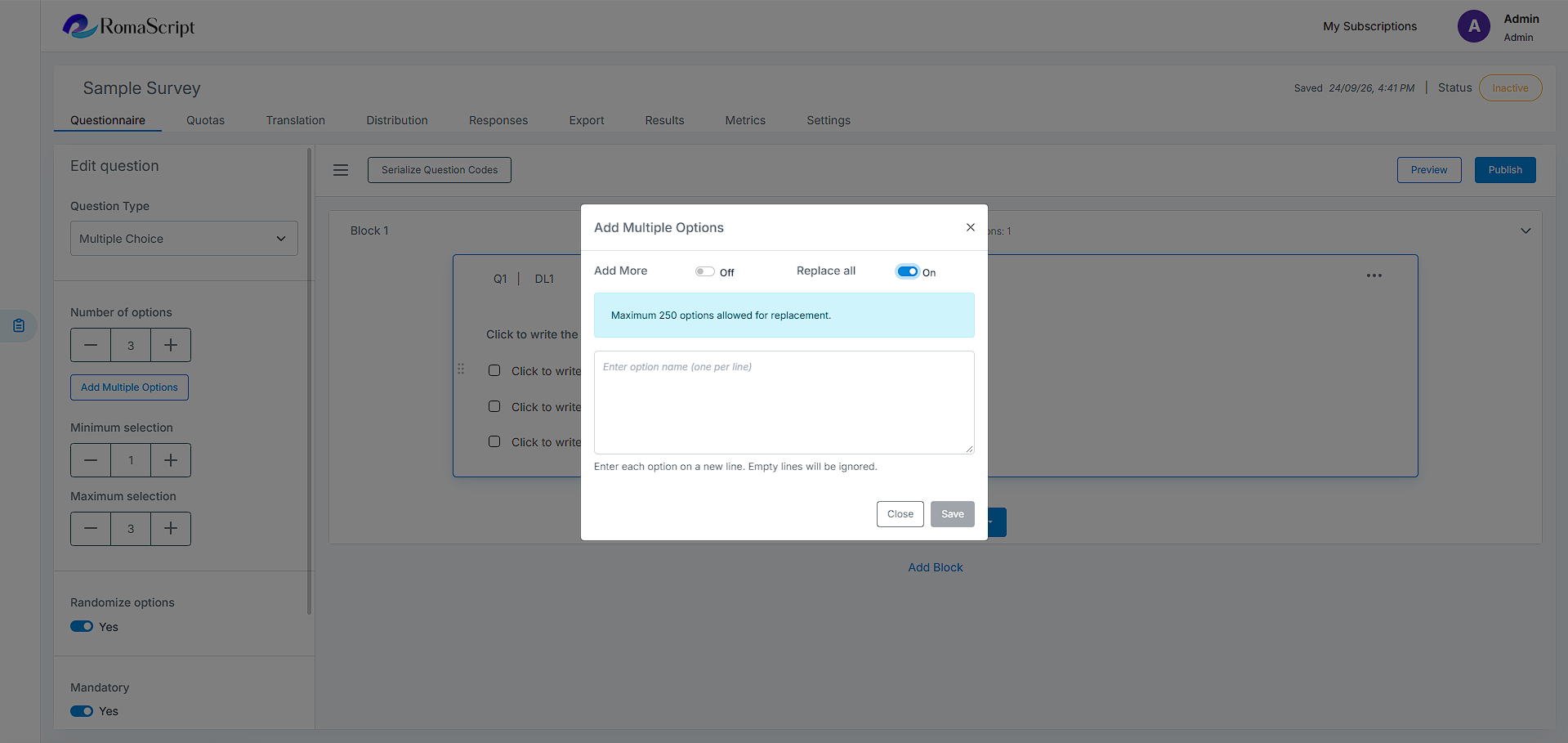
Allows respondents to enter additional text along with a selected option. When enabled, a text-entry icon is displayed beside the option.
When the option is selected, a text field appears for the respondent to enter additional information. The text field becomes mandatory once the option is selected.
Note
Available for all question types except Text Entry, Likert Scale, Rating Scale, Slider, File Upload, Date & Time, SEC, and NPS.
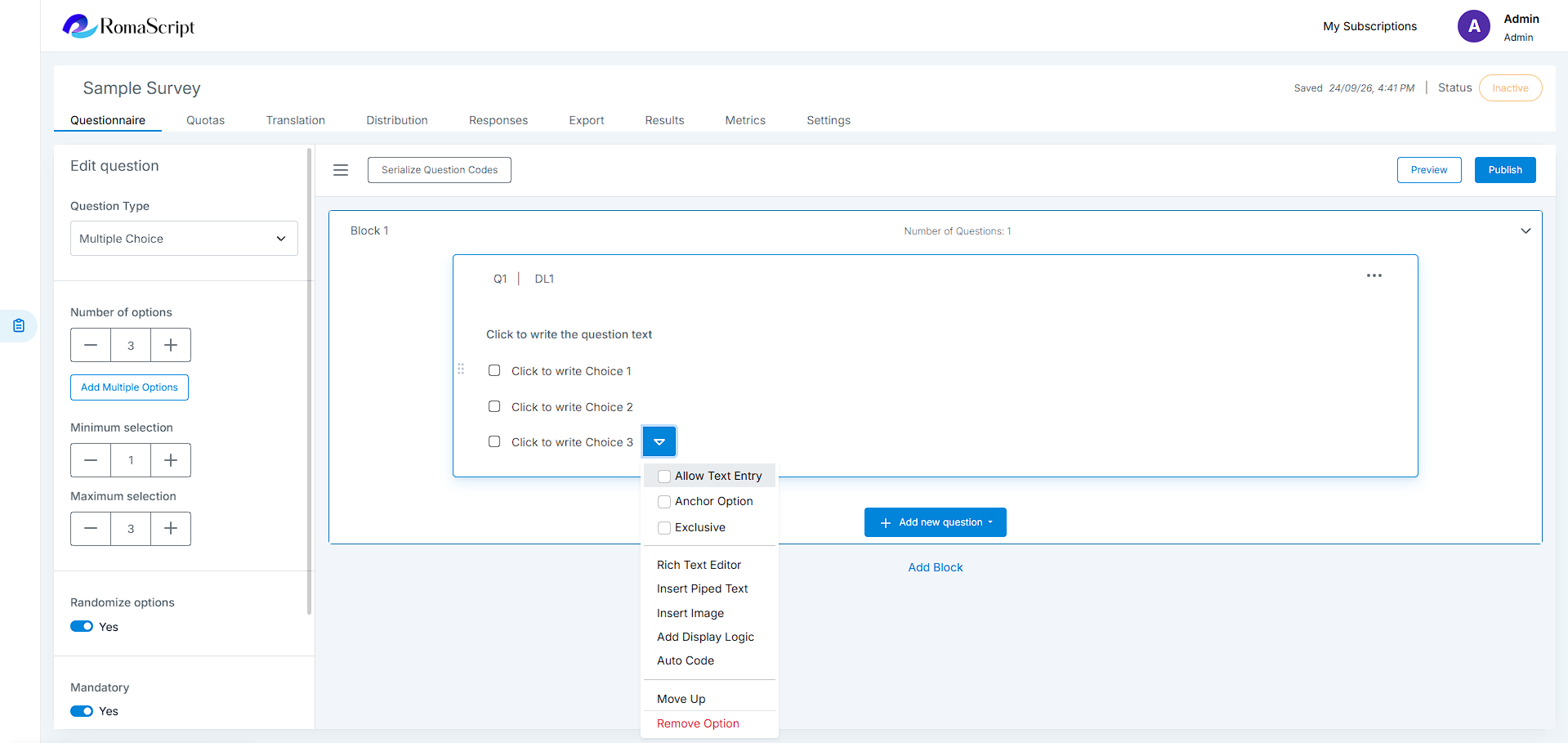
Anchor Option
Keeps a selected option in its defined position when option randomization is enabled.
When randomization is applied to a question and an option is marked as an Anchor Option, that option remains in its original position while the remaining options are displayed in random order.
Note
Available for all question types except Text Entry, Rating Scale, File Upload, Date & Time, SEC, and NPS.
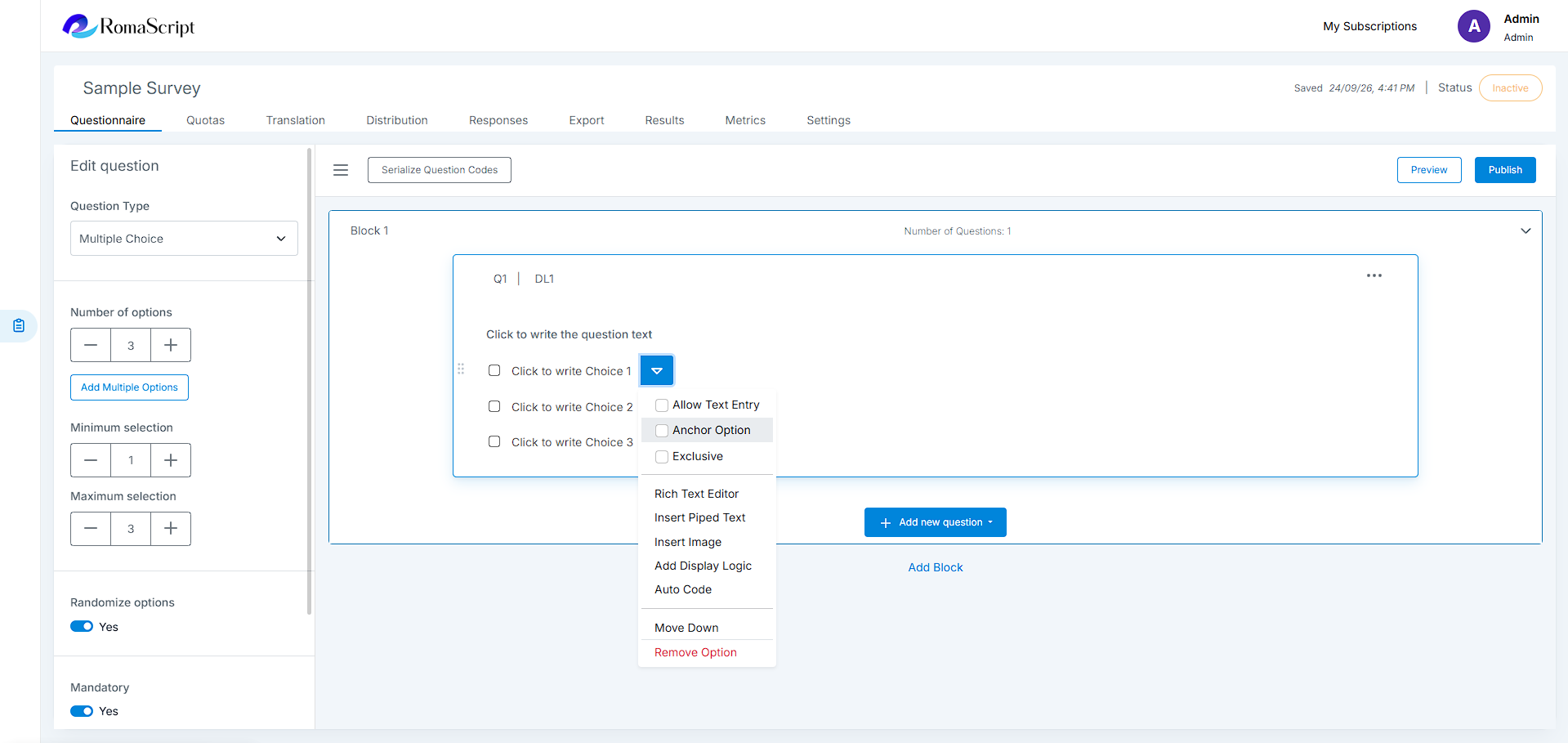
Exclusive
Allows an option to be selected exclusively, automatically deselecting other selected options.
In Multiple Choice and Multiple Choice Matrix questions, selecting an Exclusive option removes the selection from other options. In the Multiple Choice Matrix, when a row or column is set as Exclusive, selecting another row or column will deselect the Exclusive row or column, and vice versa.
Note
Available only for Multiple Choice and Multiple Choice Matrix.
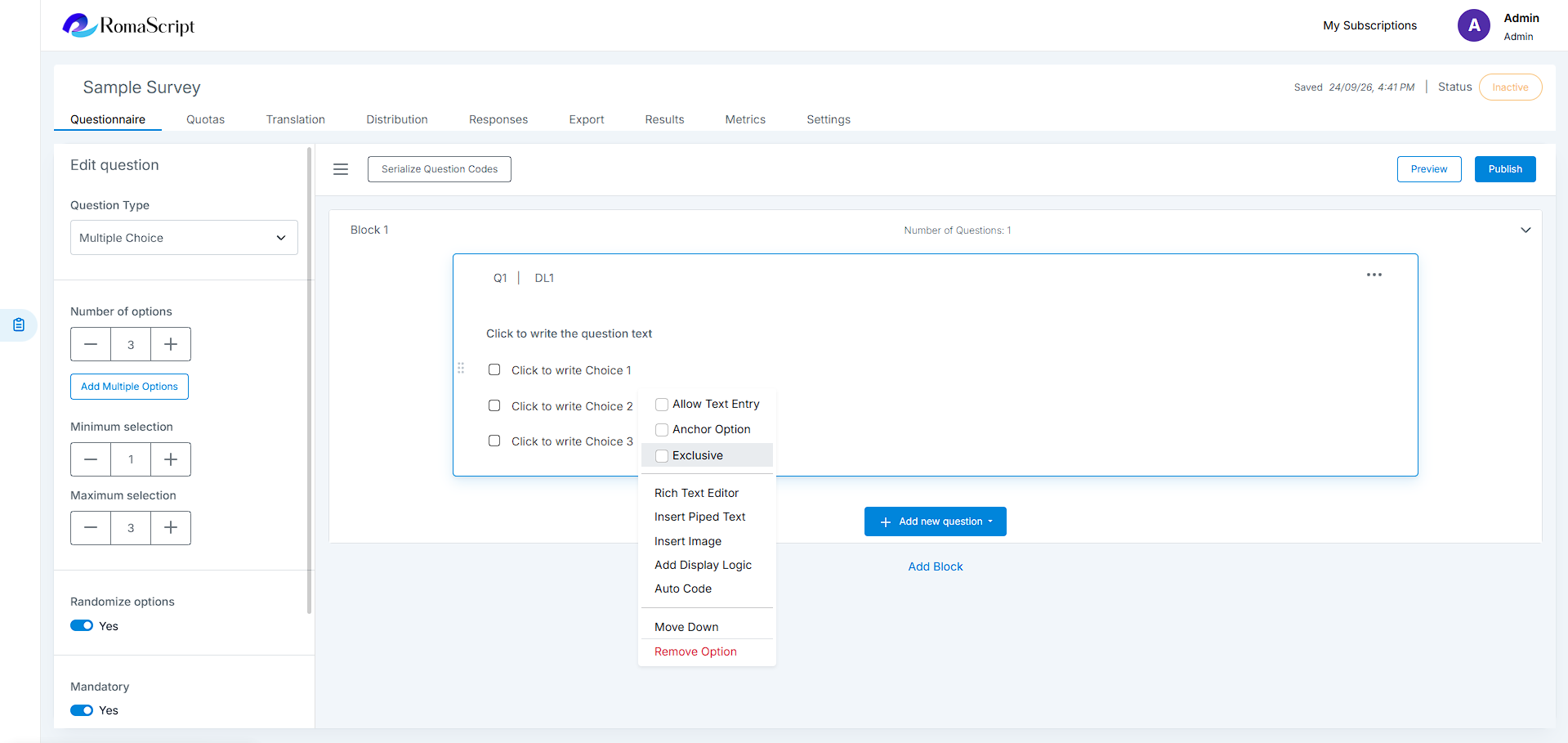
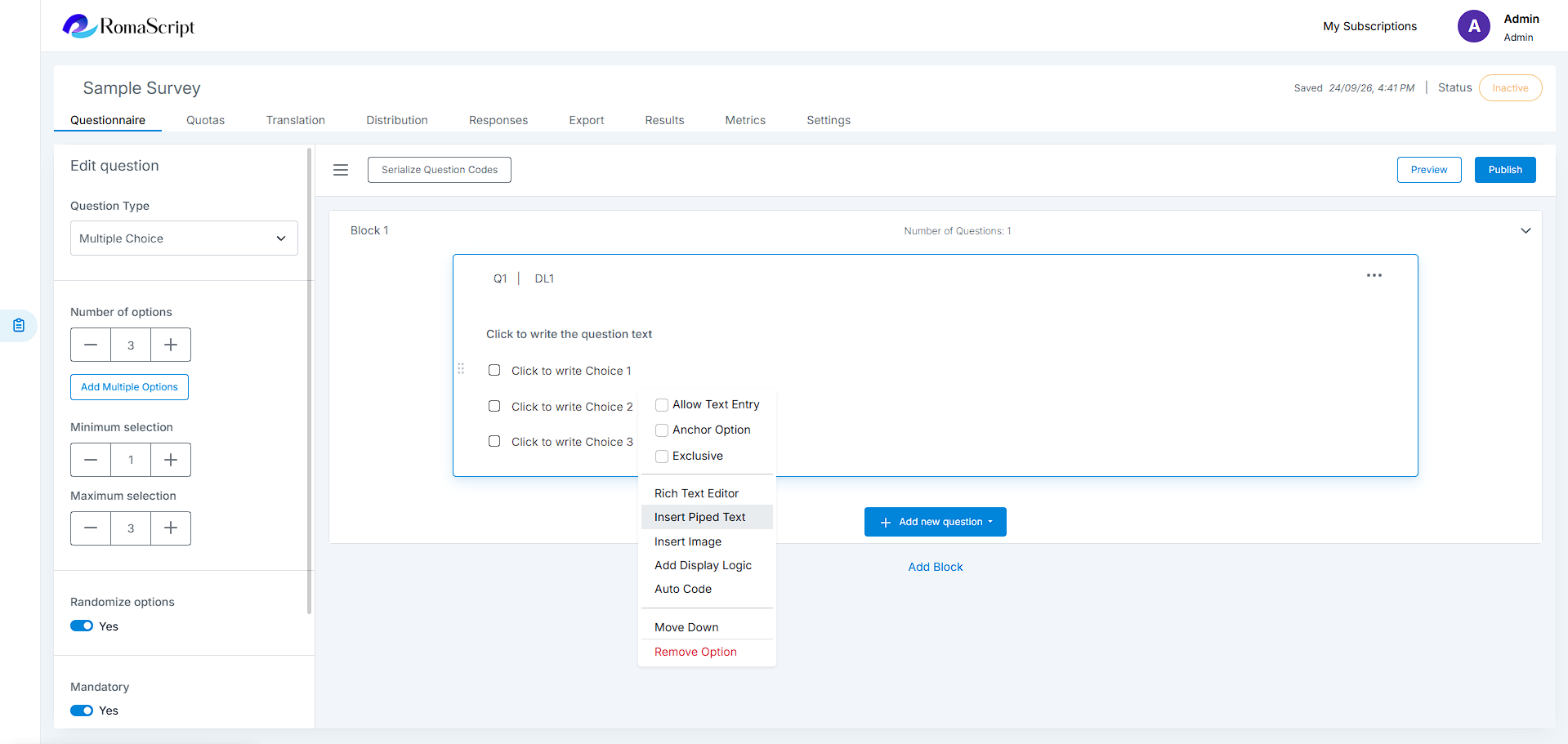
Rich Text Editor
Allows rich text formatting to be added to an option.
Note
Available for question types with options except Rating Scale.
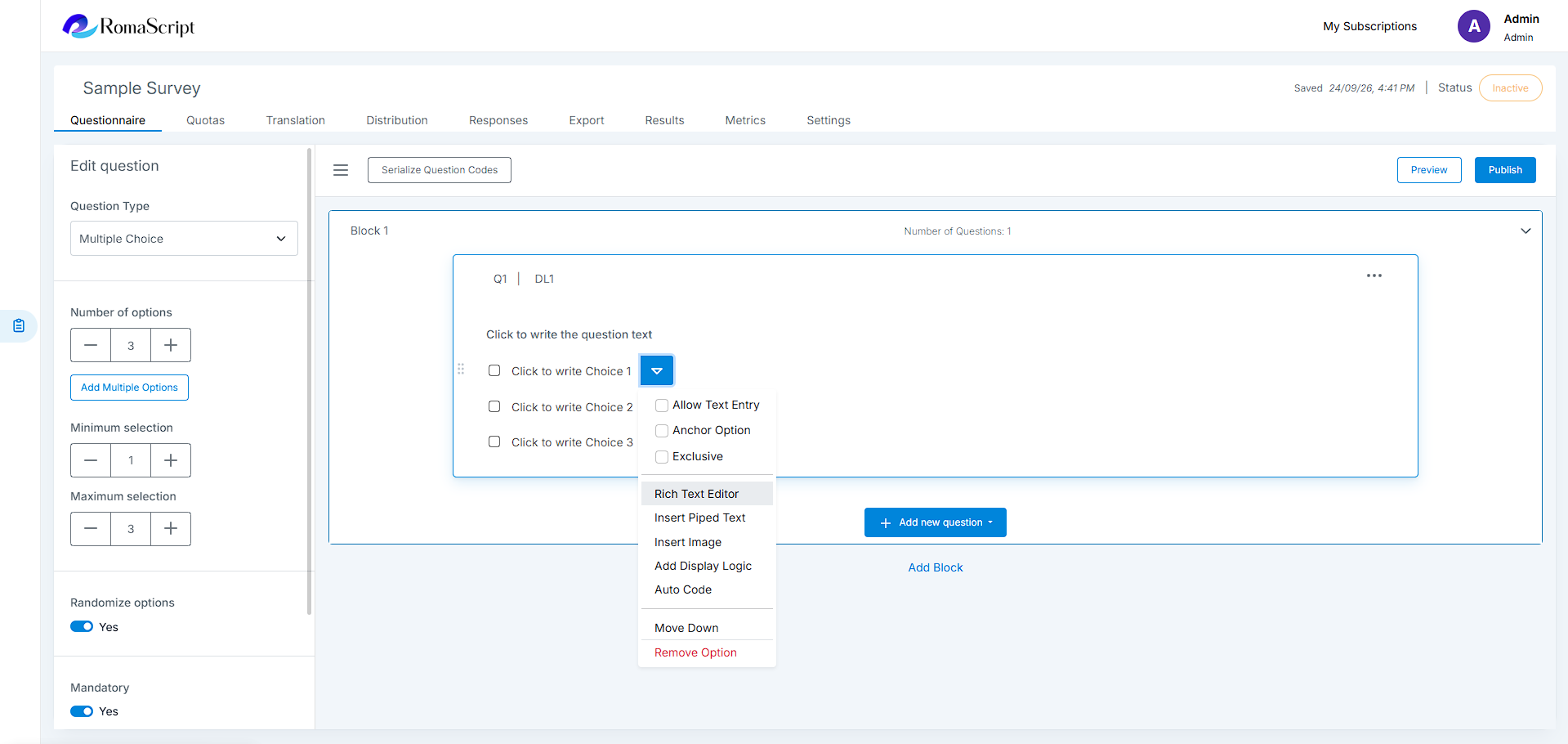
Piped Text
Allows piped text to be added to an option for displaying dynamic text based on survey responses.
Note
Available for question types with options except Rating Scale.
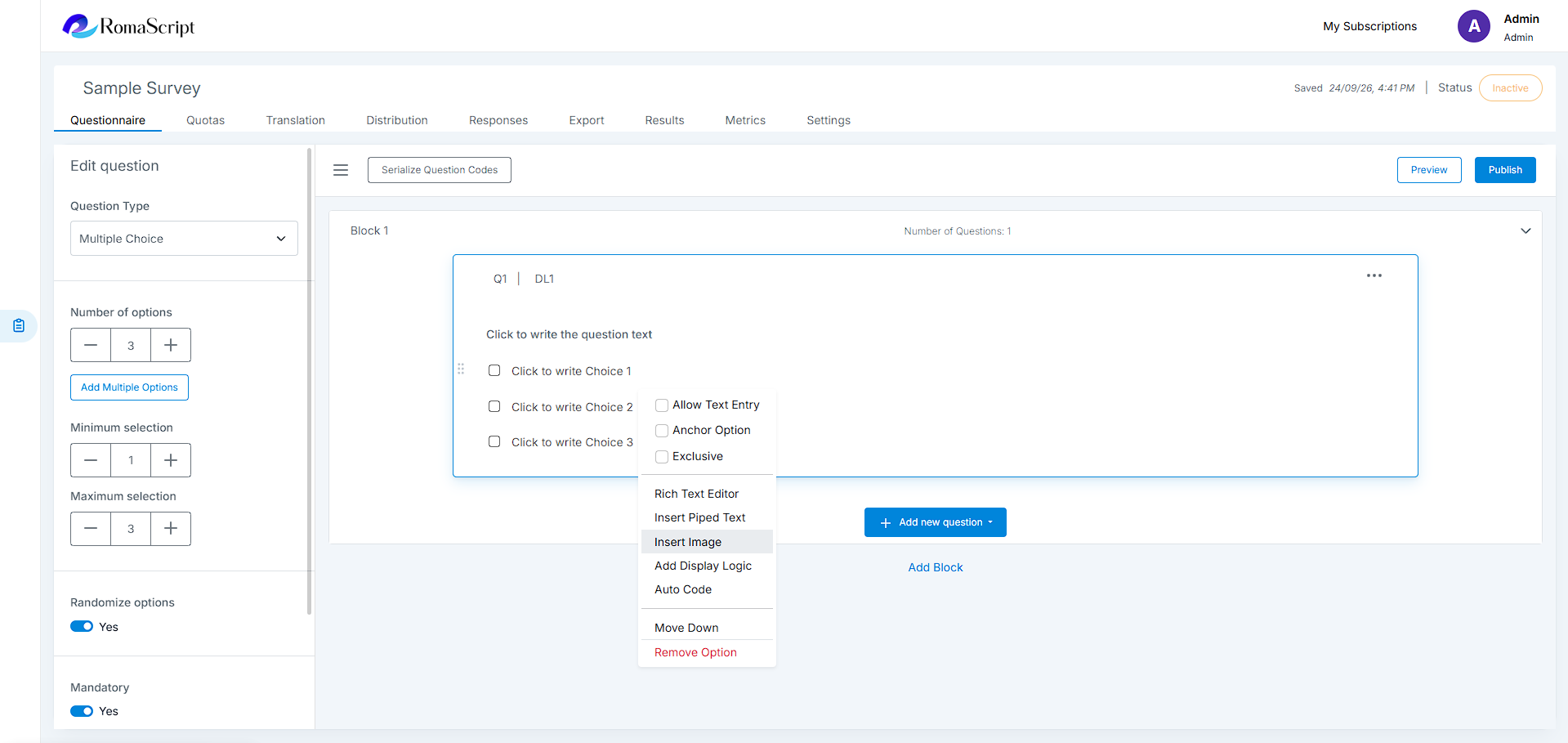
Insert Image
Allows an image to be added to an option.
Note
Available for question types with options except Rating Scale.
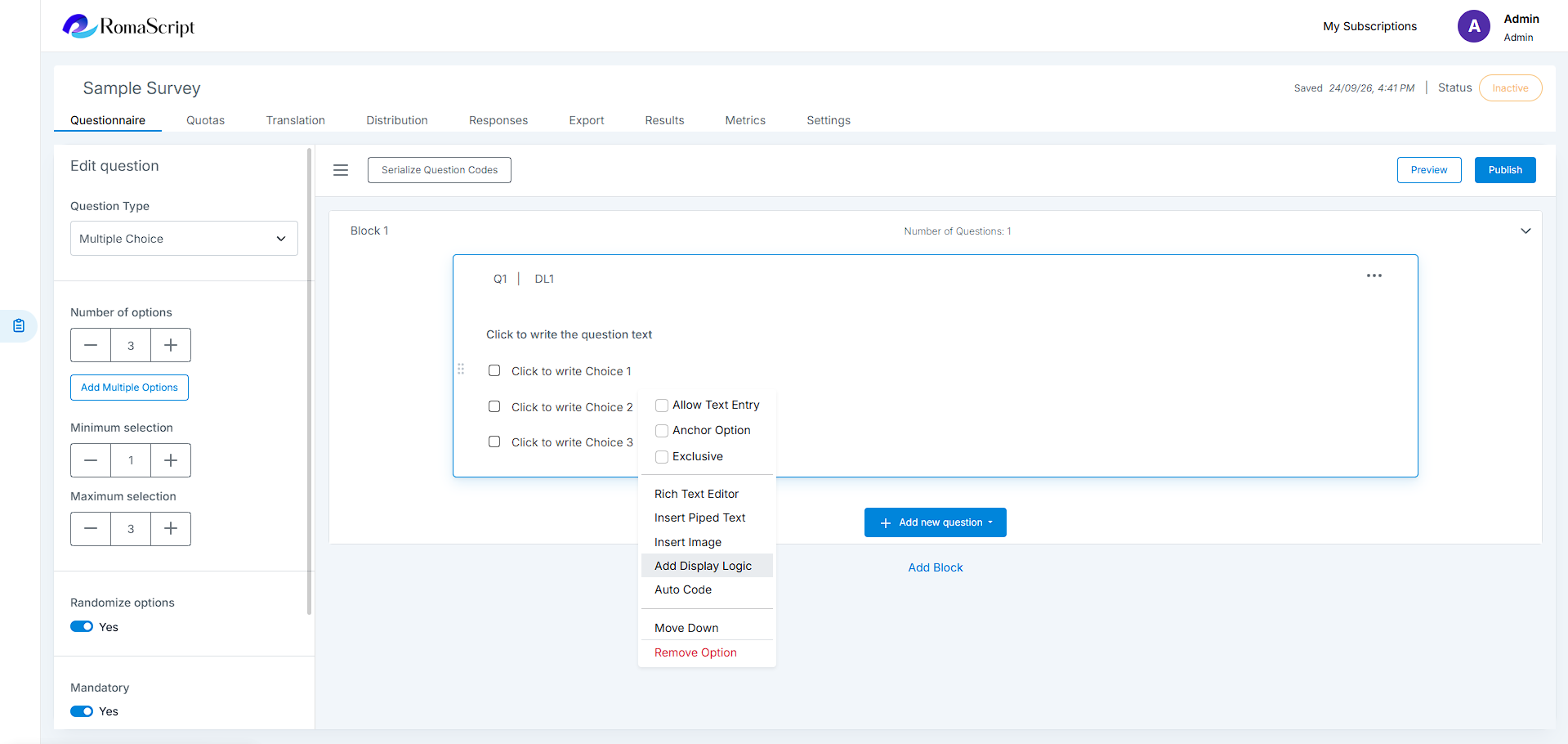
Display Logic
Allows display logic to be configured for an individual option.
When display logic is added, an indicator is displayed beside the option. The option is shown or hidden based on the configured logic conditions.
Note
Available for question types with options except Rating Scale.
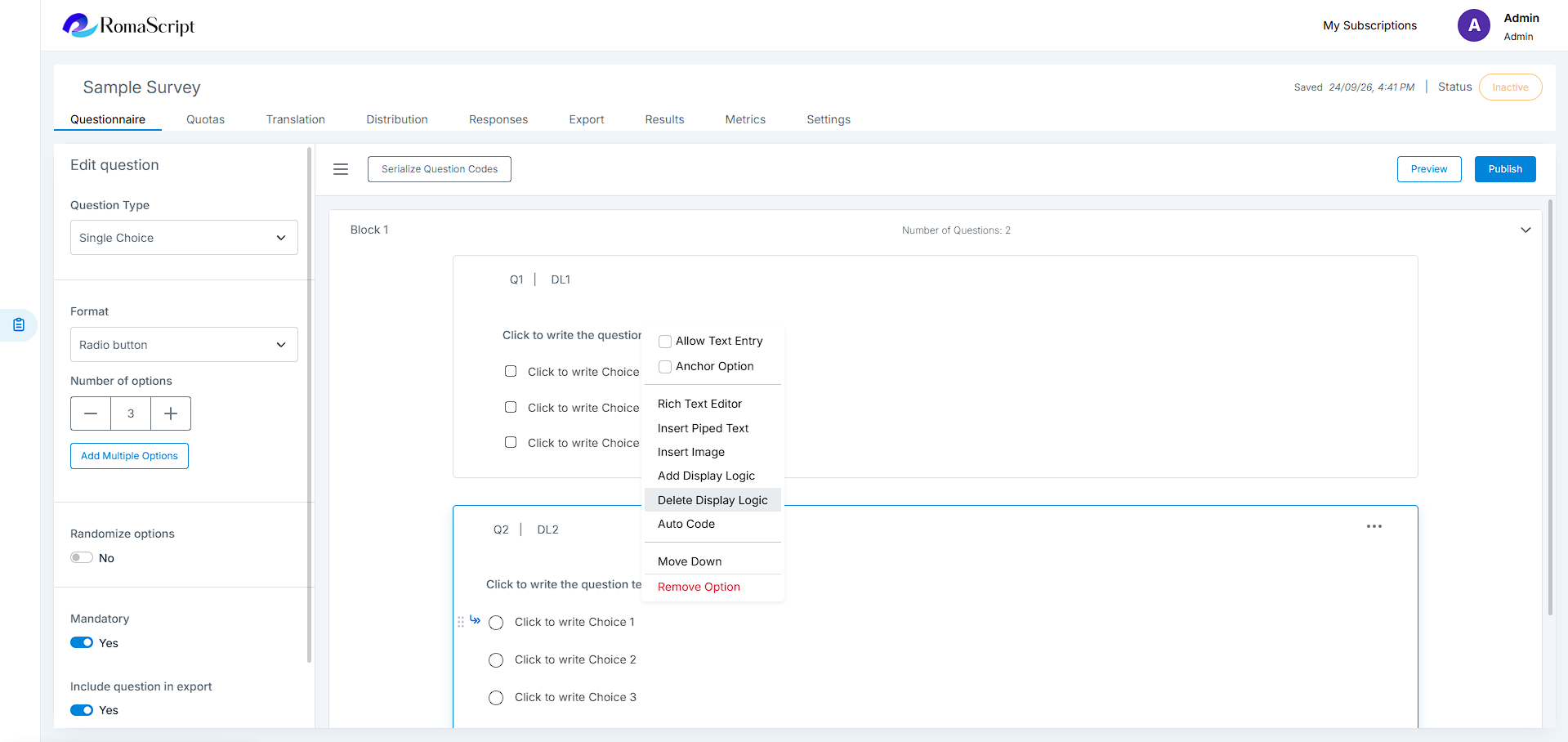
Delete Display Logic
Removes the display logic configured for an option. This setting is visible only when display logic has already been added.
Note
Available where option-level Display Logic is available; visible only after Display Logic has been added.
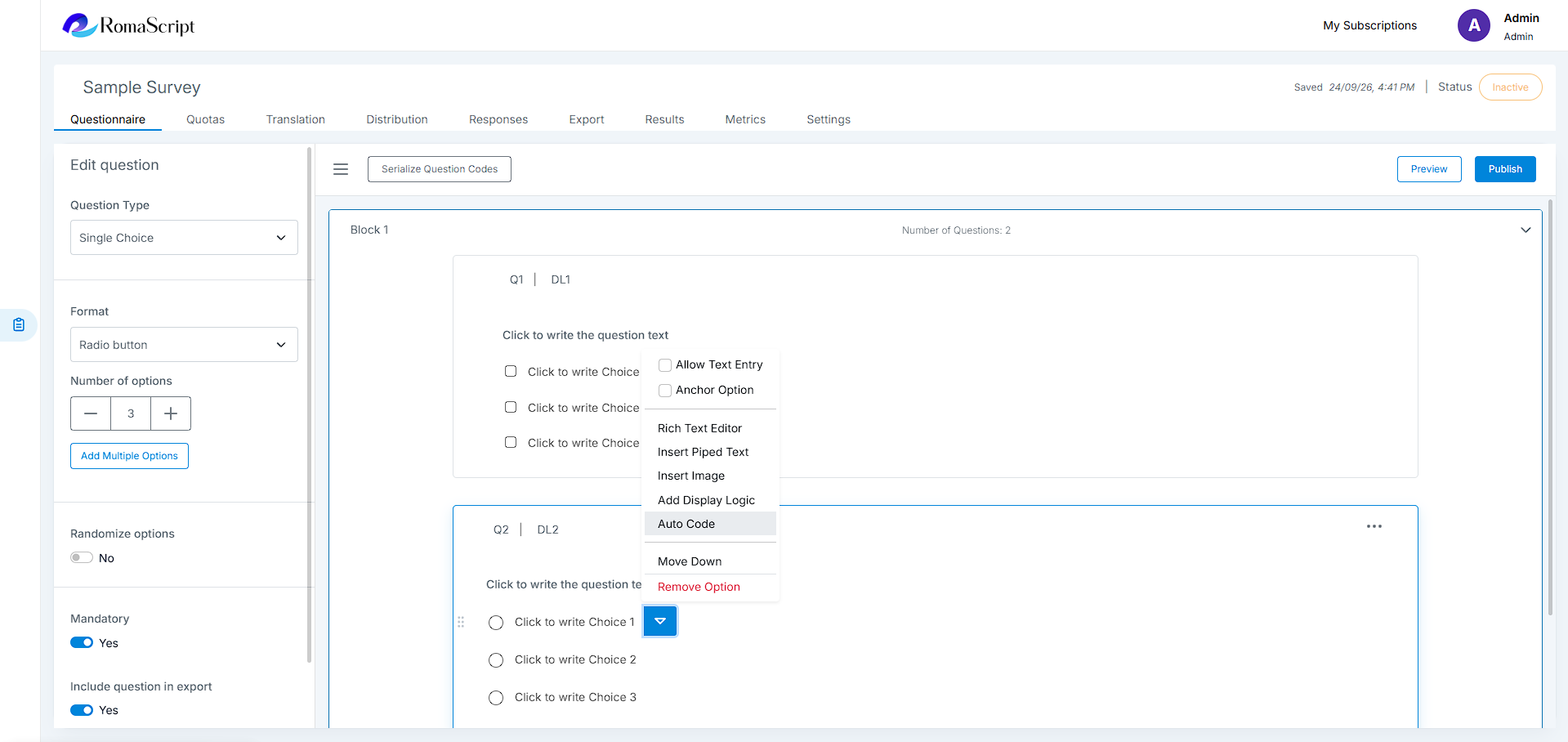
Autocode
Allows an Autocode to be configured for an individual option.
When Autocode is added, an indicator is displayed beside the option. The option can then be selected automatically based on the configured conditions.
Note
Available for question types with options except Rating Scale.
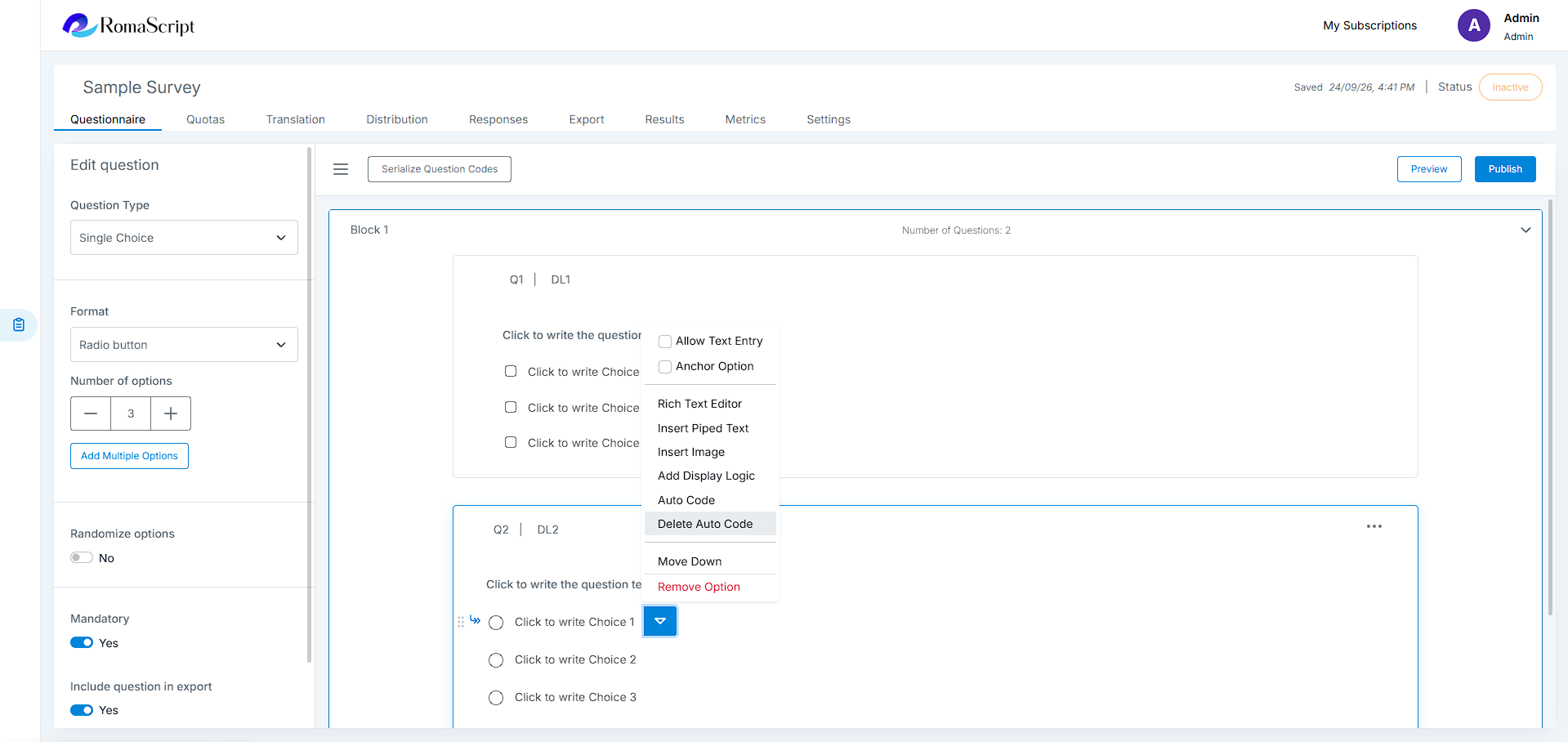
Delete Autocode
Removes the Autocode configured for an option. This setting is visible only when Autocode has already been added.
Note
Available where option-level Autocode is available; visible only after Autocode has been added.
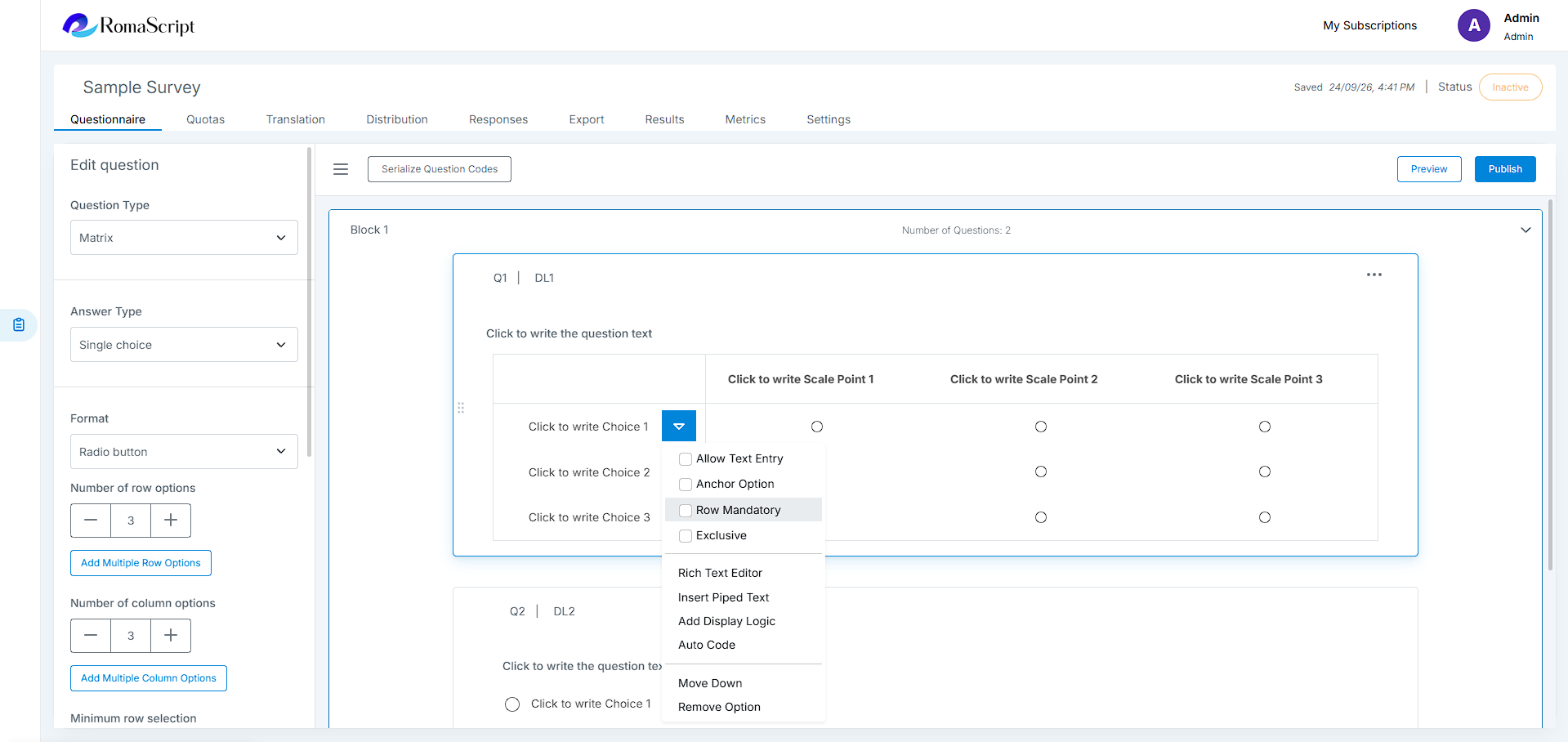
Row Mandatory
Makes a matrix row mandatory.
When enabled for a row, the respondent must provide a response for that row before moving ahead in the survey.
Note
Available only for Matrix question types.
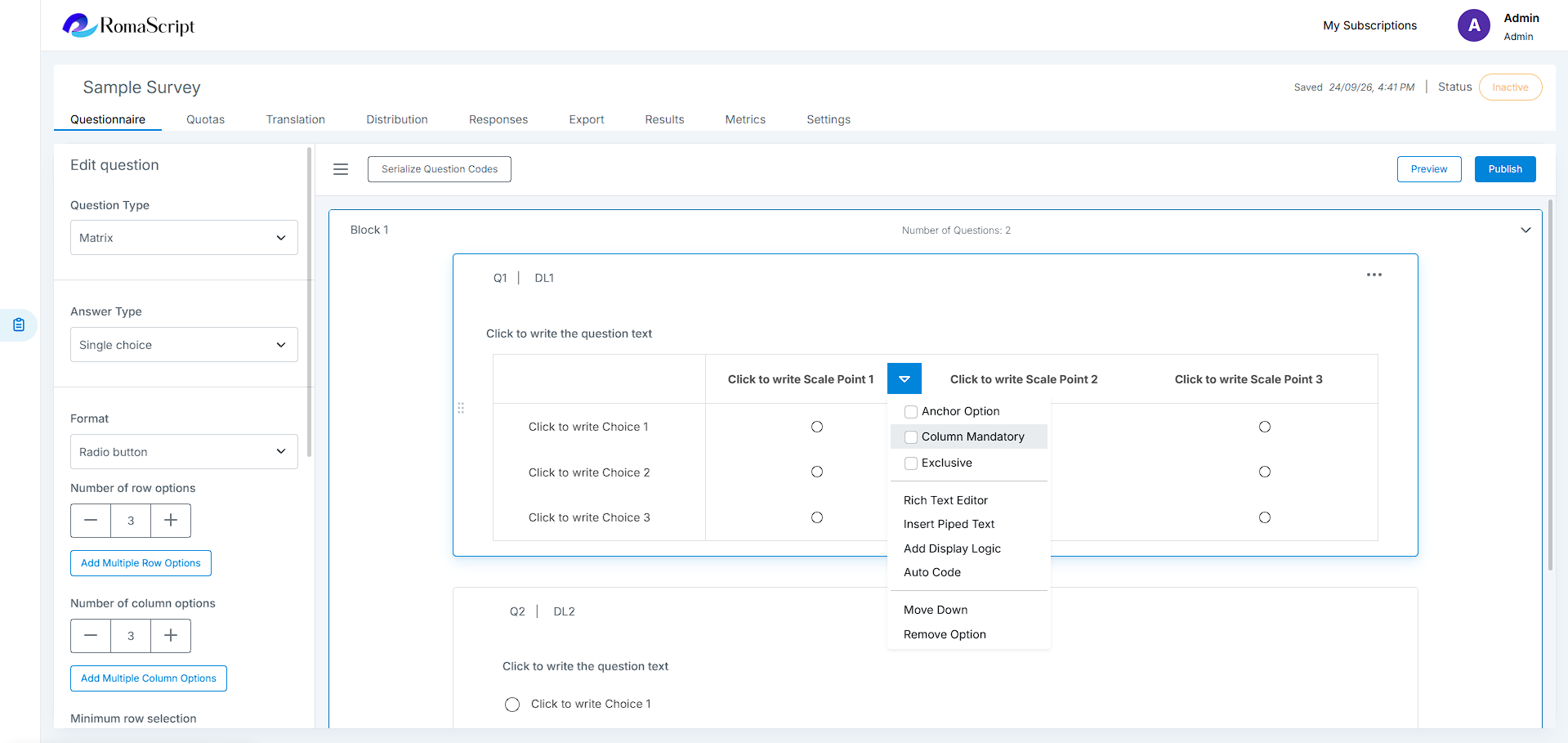
Column Mandatory
Makes a matrix column mandatory.
When enabled for a column, the respondent must provide a response for that column before moving ahead in the survey.
Note
Available only for Matrix question types.
Unique Row
Ensures that responses within a specified row remain mutually unique.
In Multiple Choice Matrix and Text Entry Matrix questions, when this setting is enabled for a row, only one of the available check boxes or text fields in that row can contain a response.
Note
Available only for Multiple Choice Matrix and Text Entry Matrix.
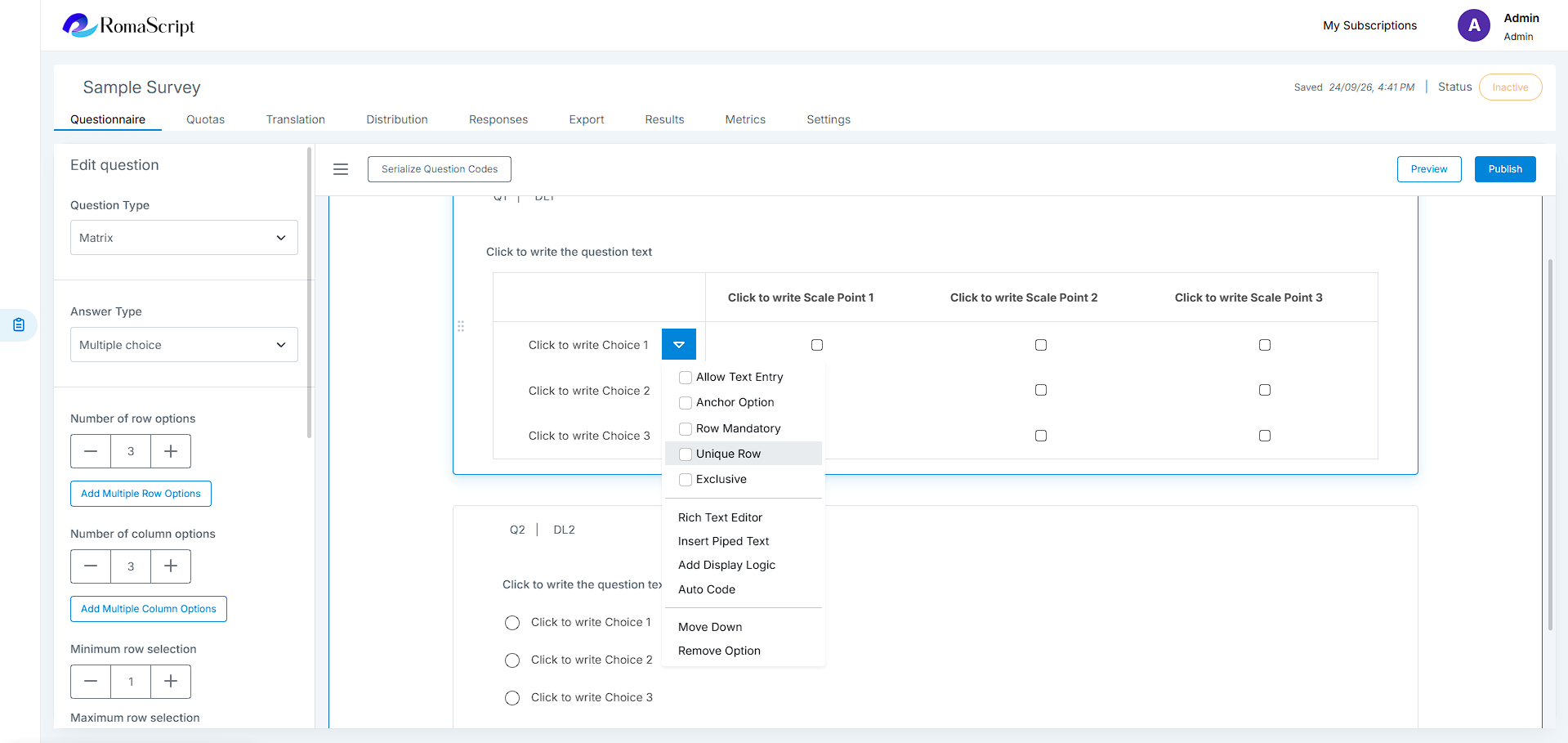
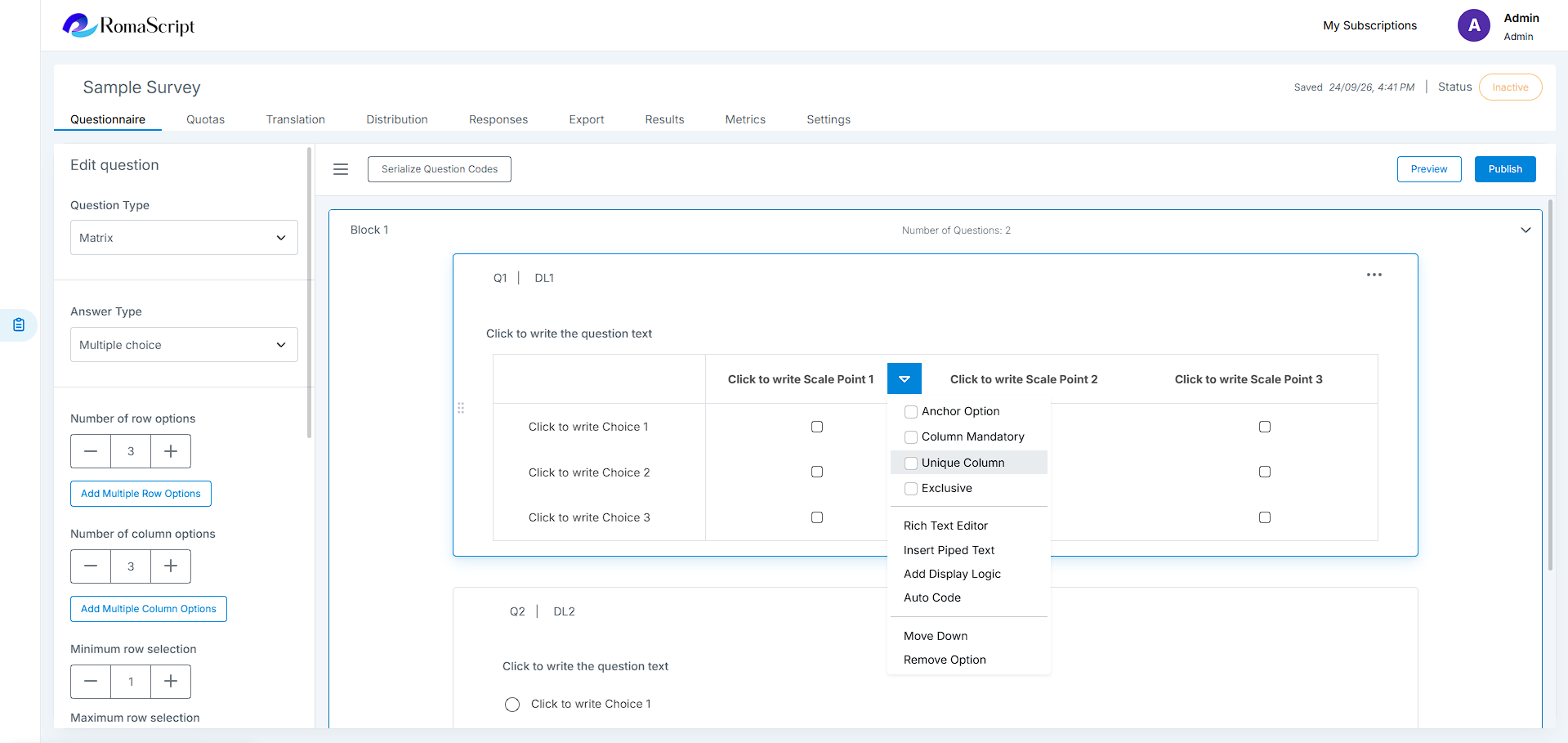
Unique Column
Ensures that responses within a specified column remain mutually unique.
In Multiple Choice Matrix and Text Entry Matrix questions, when this setting is enabled for a column, only one of the available check boxes or text fields in that column can contain a response.
Note
Available only for Multiple Choice Matrix and Text Entry Matrix.
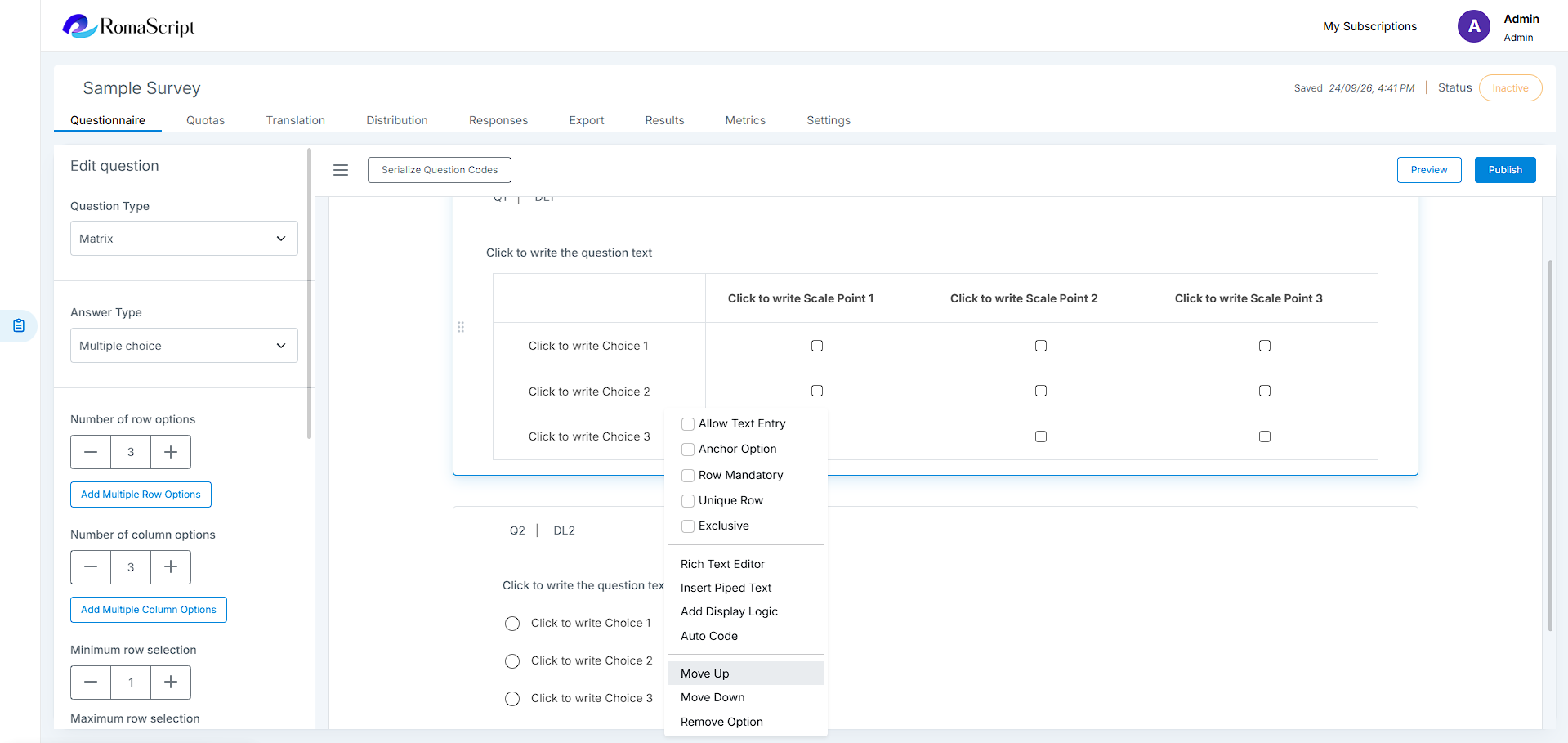
Move
Changes the position of an option within the list.
Two move options are available: Move Up and Move Down. Selecting either option moves the selected option one position in the corresponding direction.
Note
Available for question types with options.
Delete Option
Delete the selected option from the question.
Note
Available for question types with options except Rating Scale.