Logic & Branching
Create intelligent, dynamic surveys that adapt to each respondent’s answers. RomaScript’s logic features let you control visibility, personalize paths, carry responses forward, auto-populate answers, and apply response-based validations.
1. Display Logic
Display Logic controls whether a Block, Question, or Option is displayed based on a respondent’s previous response. It allows the survey to dynamically show only the content that is relevant to each respondent.
How to Apply Display Logic
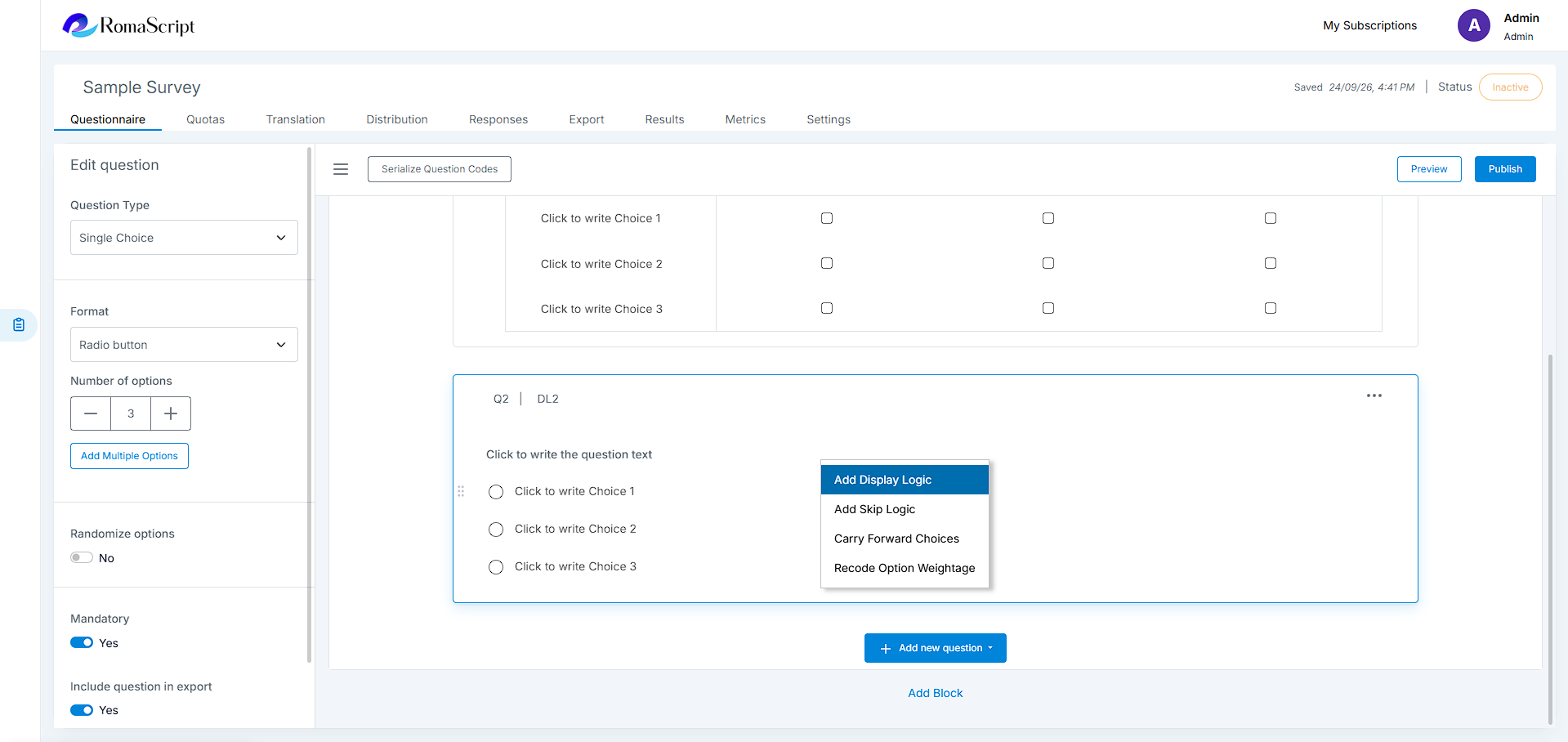
- Select the Block, Question, or Option where Display Logic needs to be applied
- Select Display Logic
- Select the source question whose response will be used as the condition
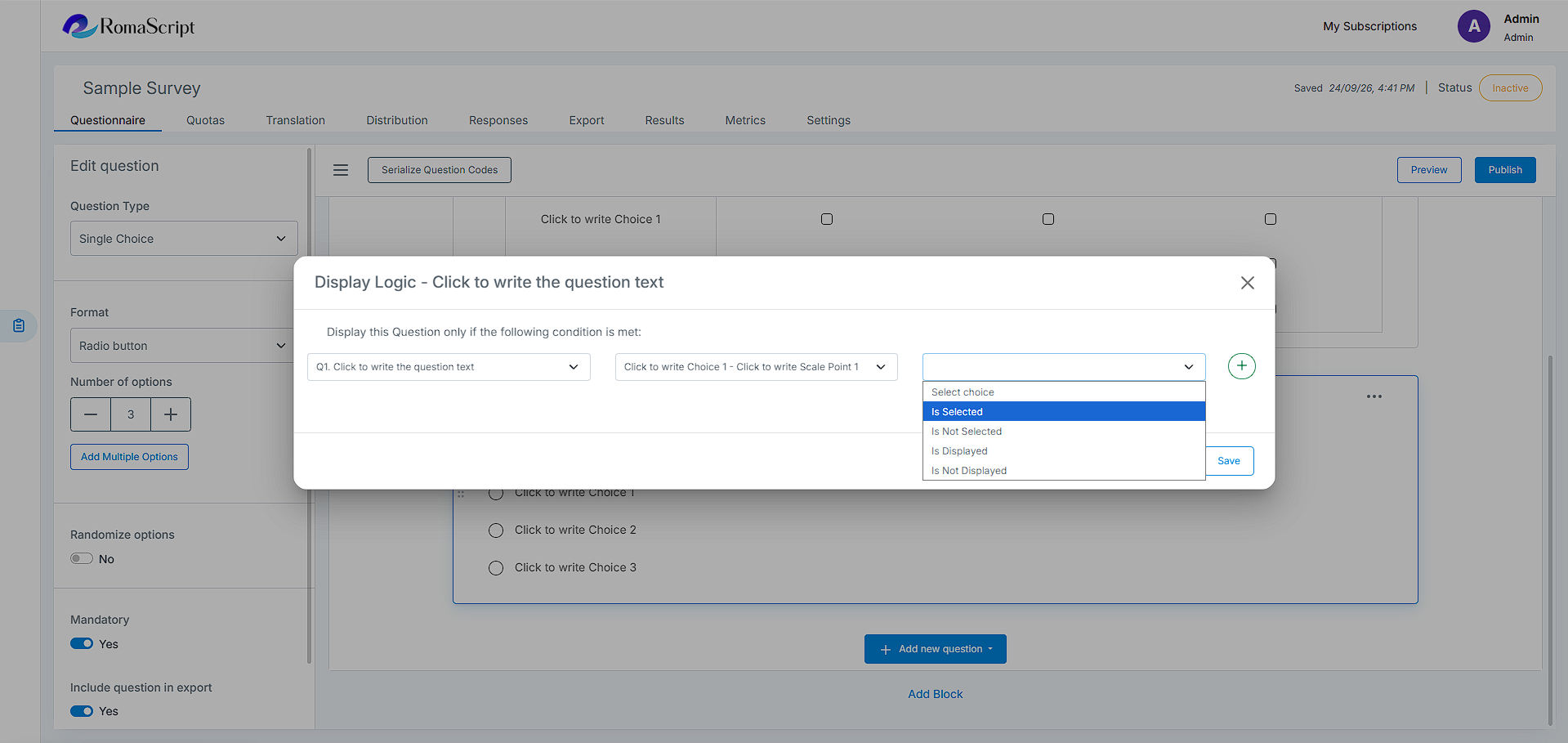
- Select the required conditions, such as Is Selected, Is Not Selected, Is Greater Than, Contains, or Matches Regex, depending on the source question
- Select or enter the value required for the condition
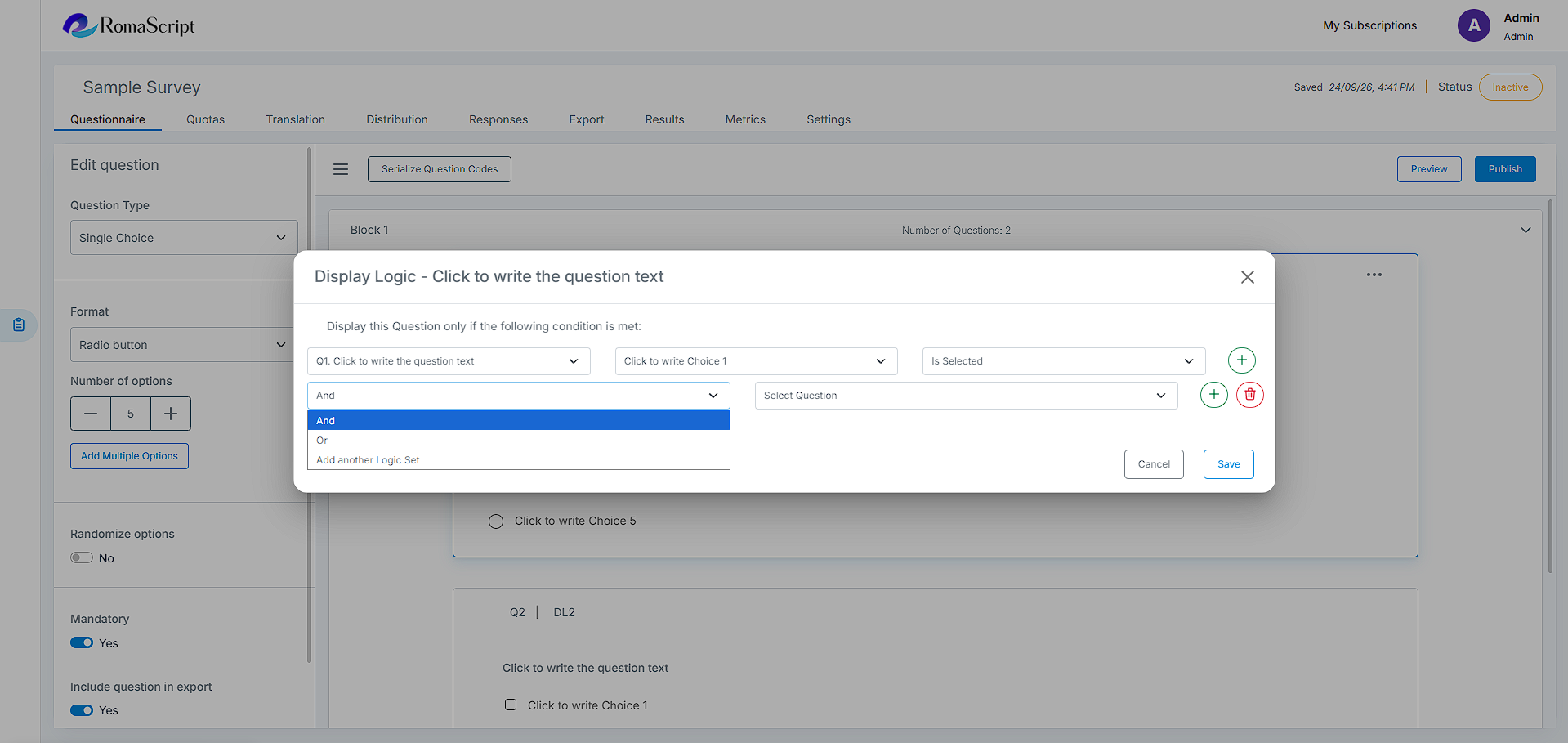
- Add additional conditions when required and combine them using AND or OR
- Save the Display Logic
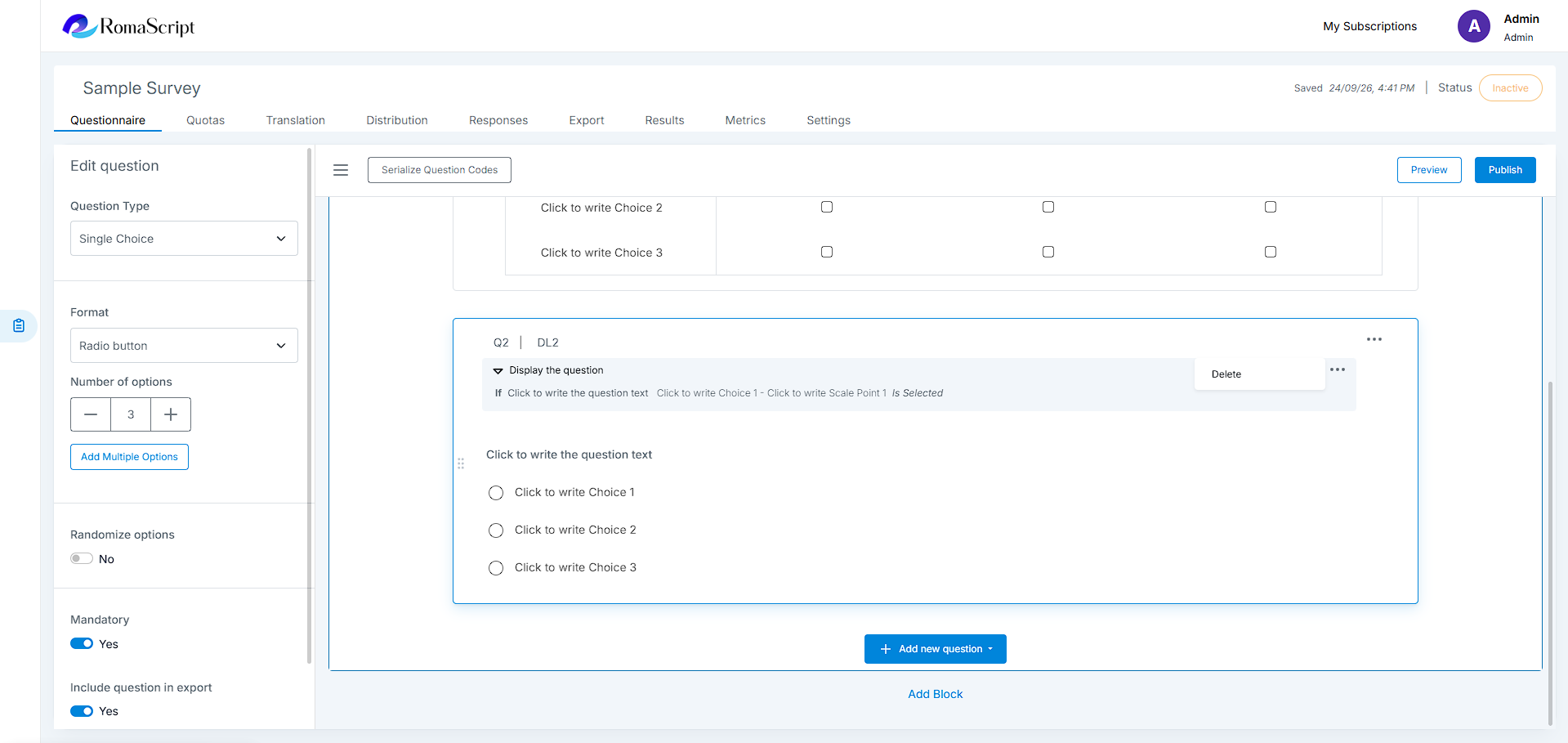
Once configured, the selected Block, Question, or Option will be displayed only when the defined condition is satisfied.
Use cases
- Show product-specific questions only to respondents who selected that product
- Display follow-up questions based on satisfaction ratings
- Show an option only when a specific response is selected in a previous question
- Reveal detailed questions only when general criteria are met
2. Skip Logic
Skip Logic automatically directs respondents to a different question or section based on their responses. It can be used to create different survey paths or to end the survey for respondents who do not meet the required criteria.
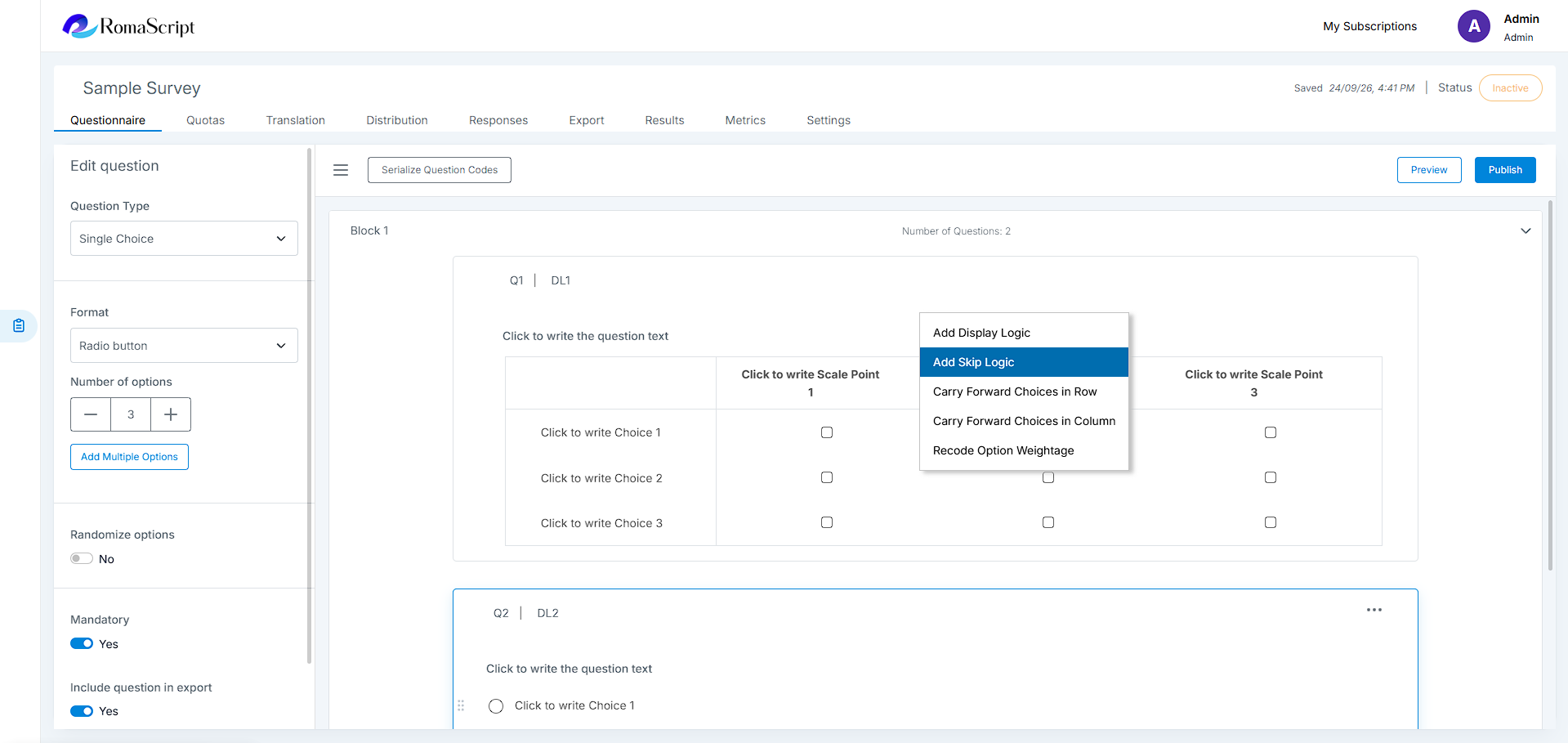
How to Apply Skip Logic
- Select the Question where the Skip Logic needs to be applied
- Select Skip Logic
- Select the source question and define the condition that should trigger the skip
- Select the destination question or section
- To terminate the survey when the condition is satisfied, select End of Survey as the destination
- Save the Skip Logic
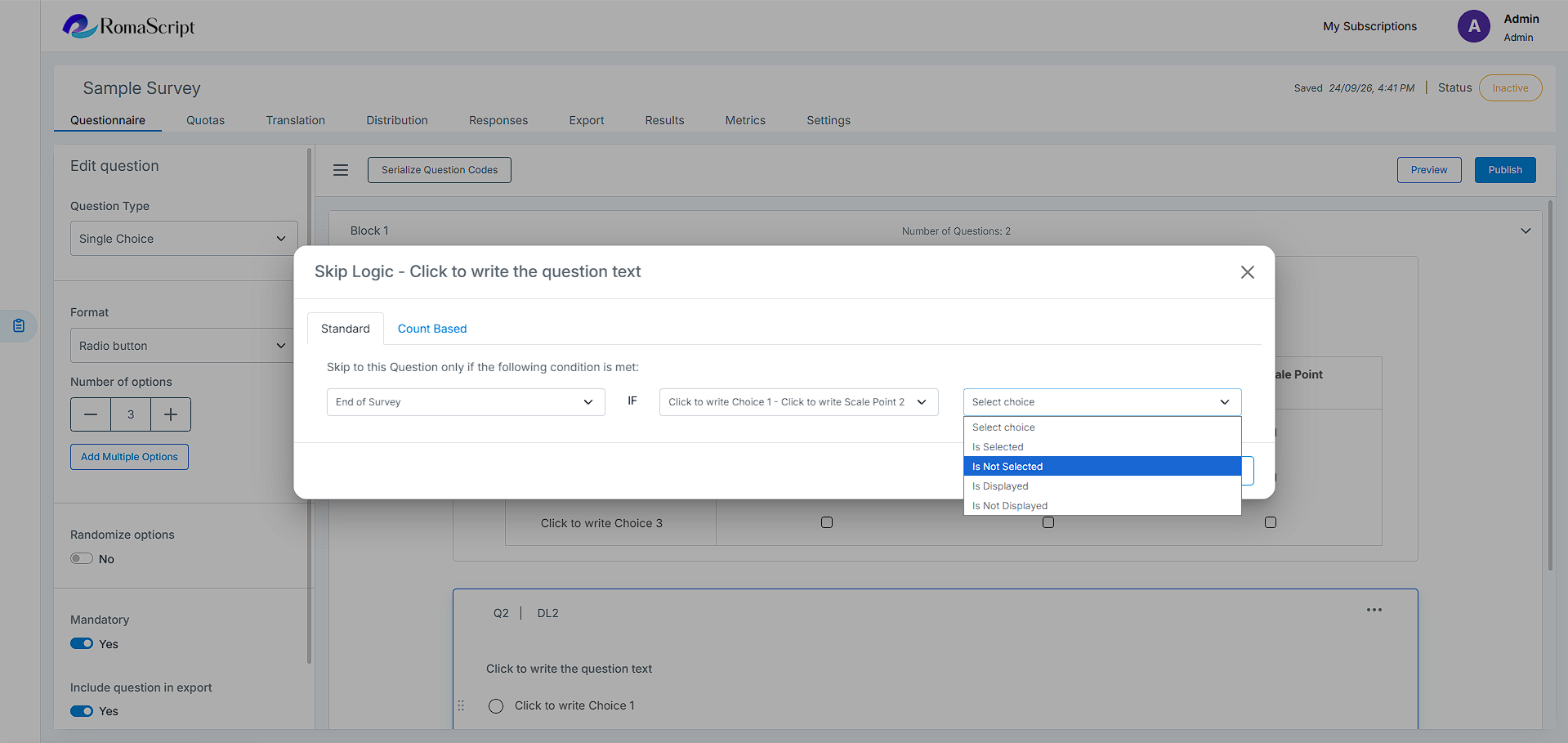
When a respondent satisfies the configured condition, RomaScript automatically skips the applicable questions and moves the respondent to the defined destination.
When multiple Skip Logic rules are configured for the same question, the first matching rule takes priority.
Use cases
- Skip irrelevant sections for non-customers
- Route respondents to specific question blocks based on demographics
- Send respondents to different sections based on their product usage
- End the survey early for disqualified respondents
3. Carry Forward
Carry Forward allows selected options from a previous question to be displayed in a subsequent question. This reduces repetition and allows respondents to evaluate only the options that are relevant to them.
Carry Forward can be applied to questions that contain options.
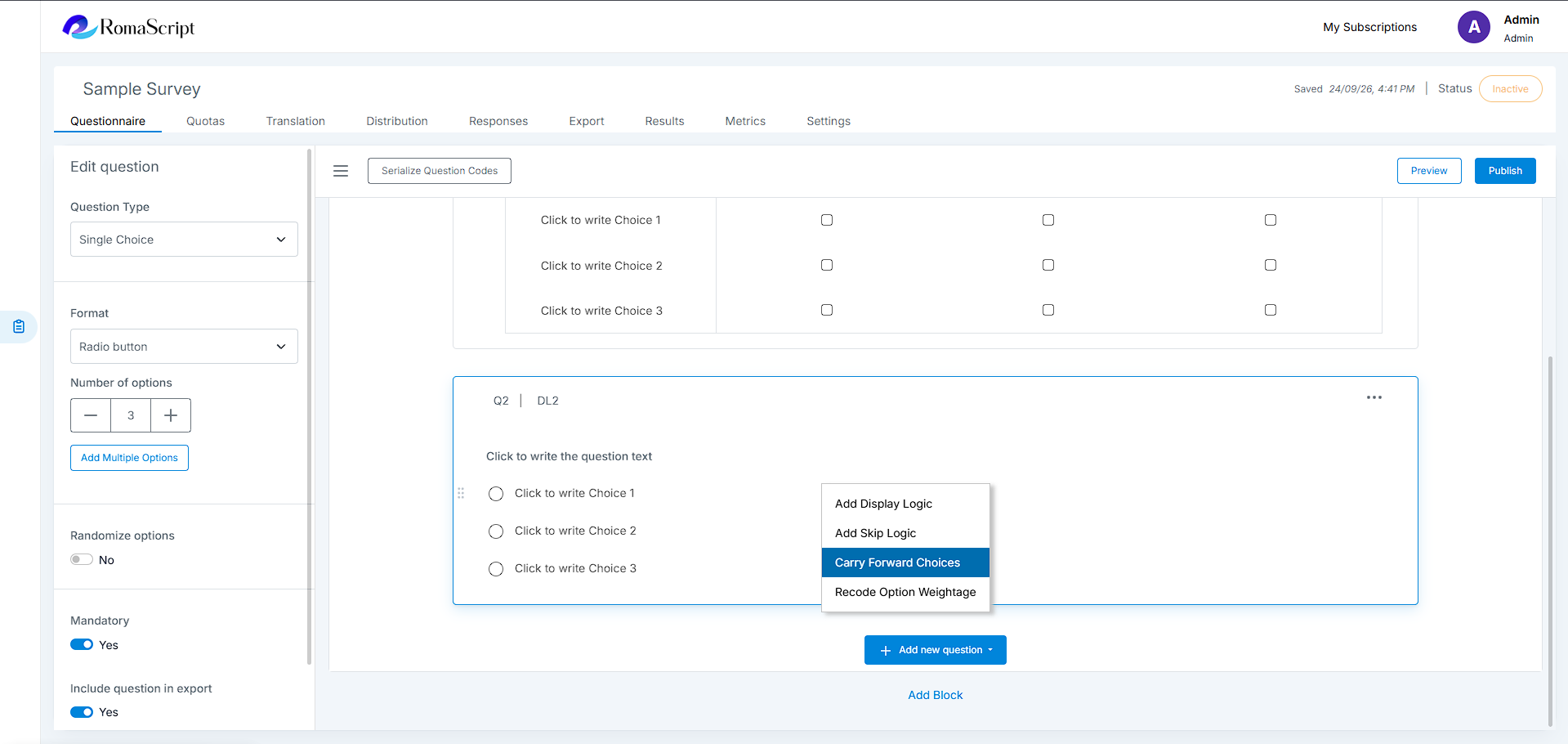
How to Apply Carry Forward
- Select the question where the carried-forward options need to be displayed
- Enable Carry Forward
- Select the source question
- Select the type of choices that need to be carried forward
- Save the Carry Forward configuration
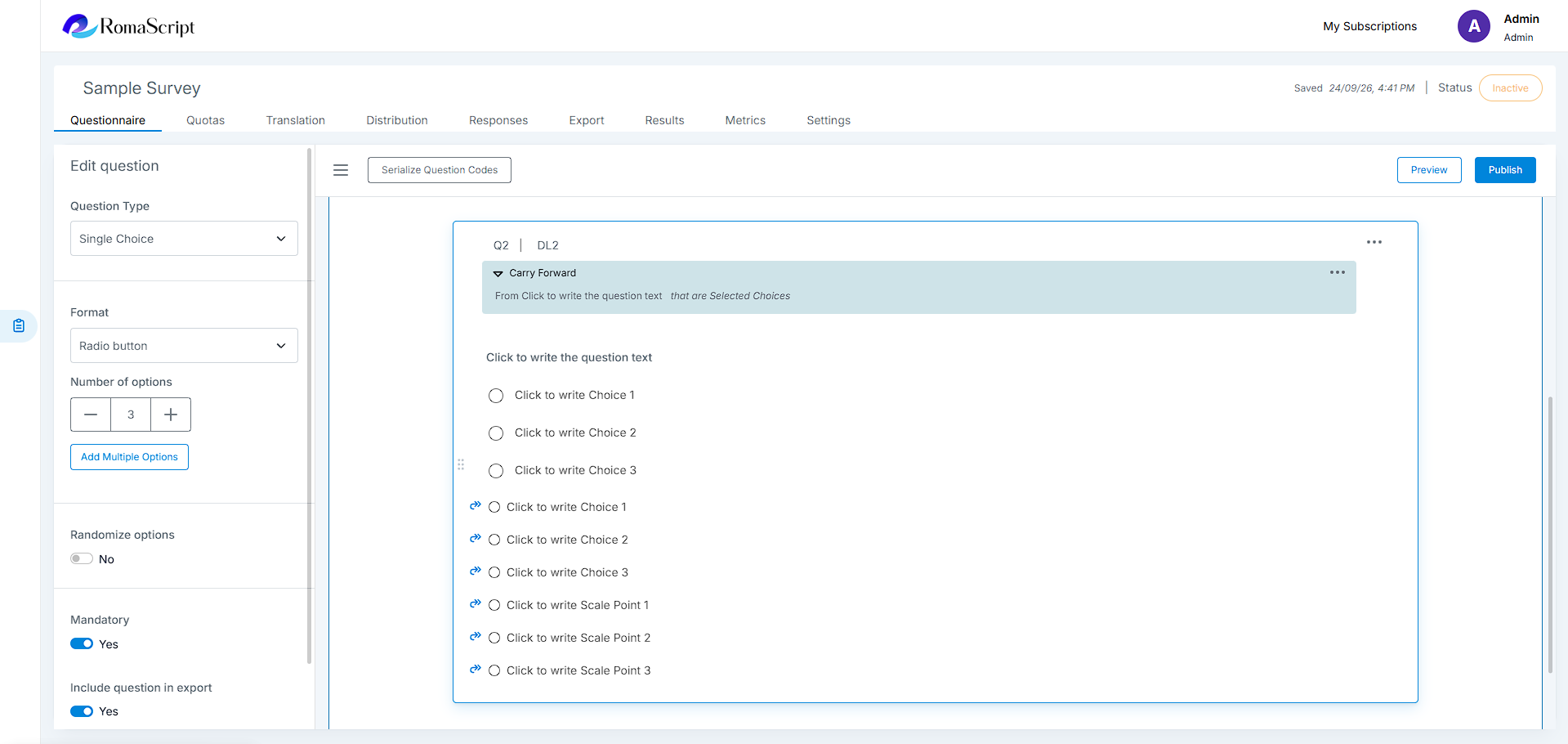
RomaScript provides the following Carry Forward options:
- All Choices – carries forward all choices from the source question
- Displayed Choices – carries forward the choices that were displayed in the source question
- Not Displayed Choices – carries forward the choices that were not displayed in the source question
- Selected Choices – carries forward the choices selected by the respondent in the source question
- Unselected Choices – carries forward the choices not selected by the respondent in the source question
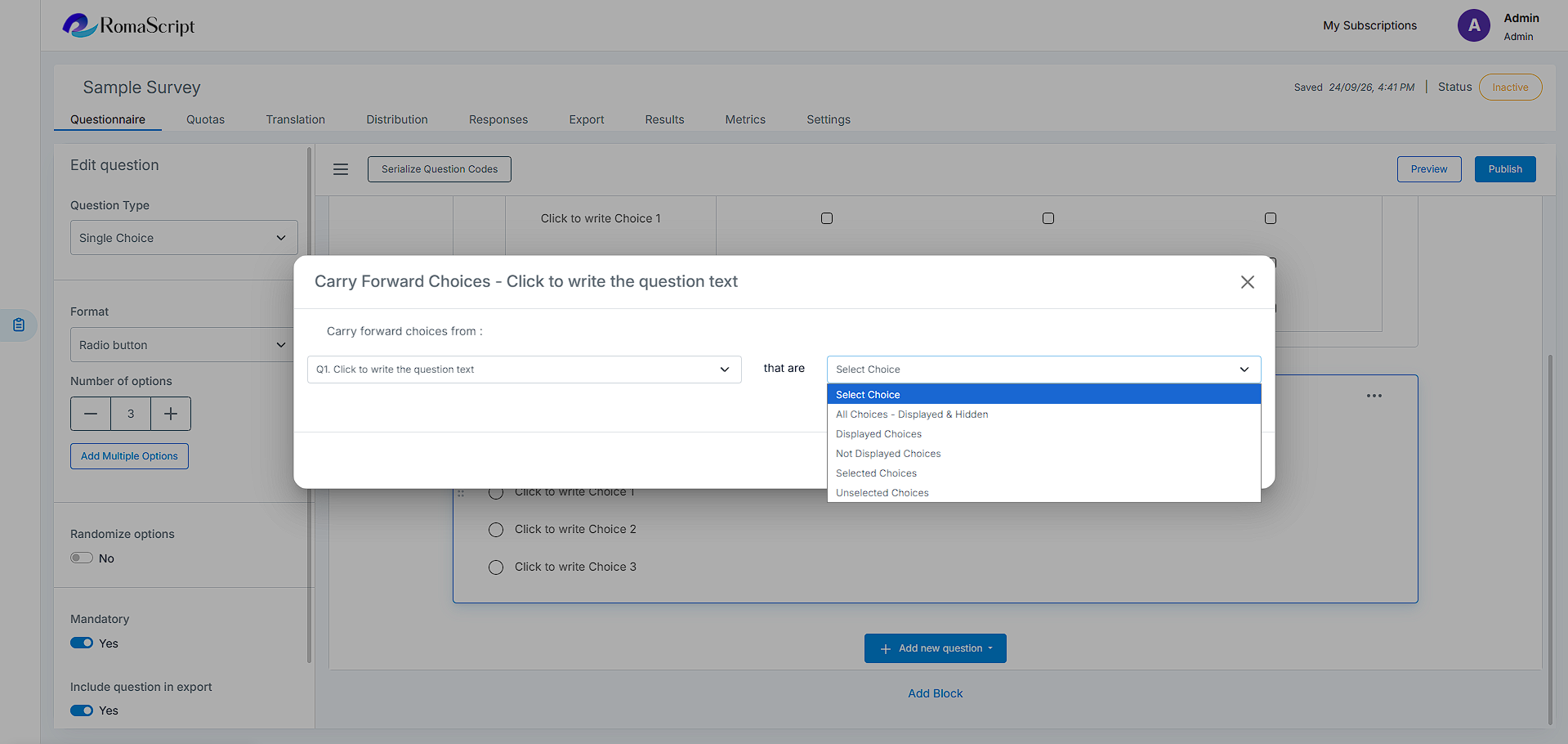
For example, if a respondent selects three brands in an initial brand-awareness question, Selected Choices can be used to display only those three brands in a subsequent evaluation question.
Use cases
- Ask detailed questions only about brands selected in an initial awareness question
- Evaluate only the products respondents have used
- Create focused follow-up questions based on previously displayed or selected options
- Reduce repetition by showing only relevant options
4. Text Piping
Text Piping allows a respondent’s previous response to be inserted into a later question, creating personalized and contextual question text.
How to Apply Text Piping
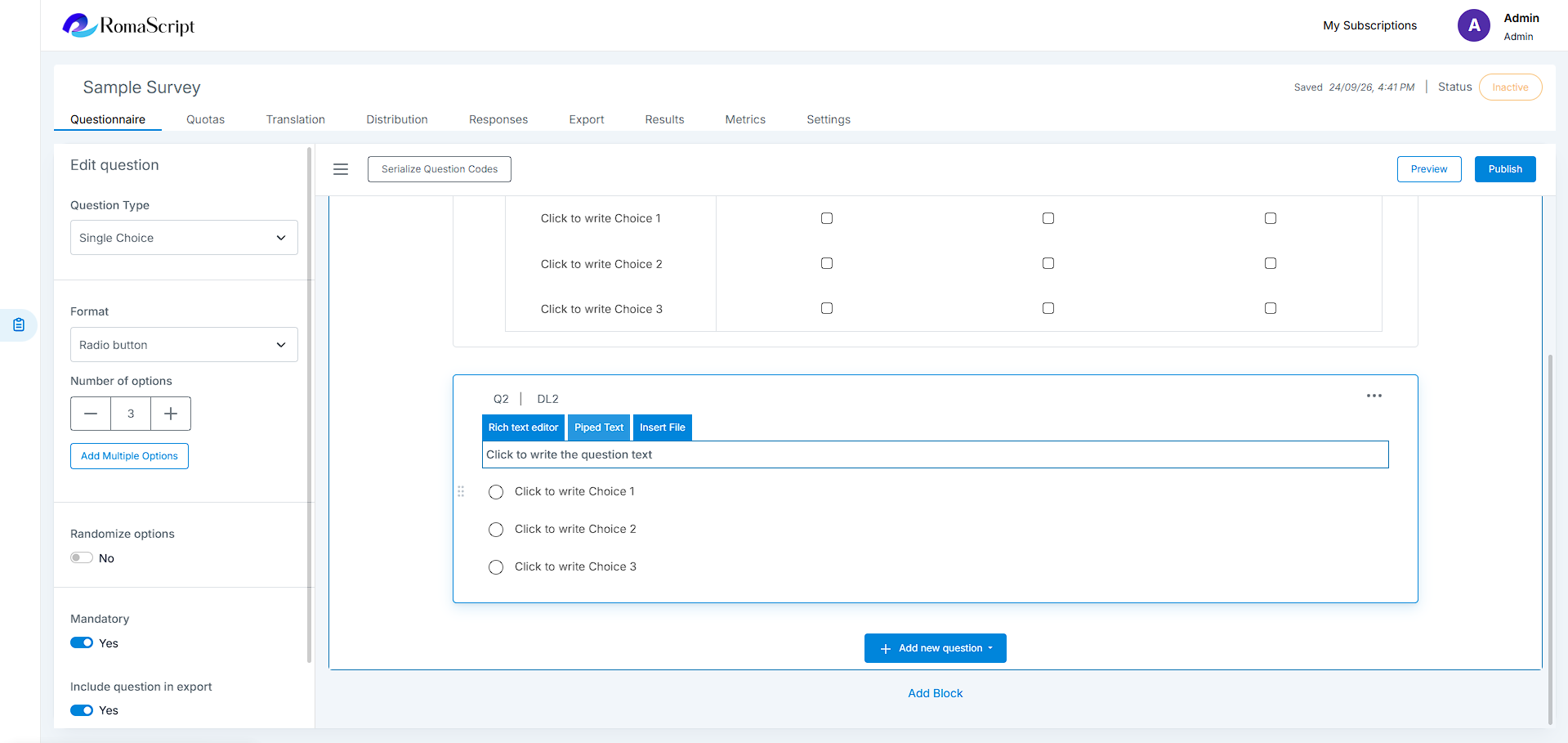
- Select the question where the response needs to be displayed
- Place the cursor at the required location in the question text or supported text field
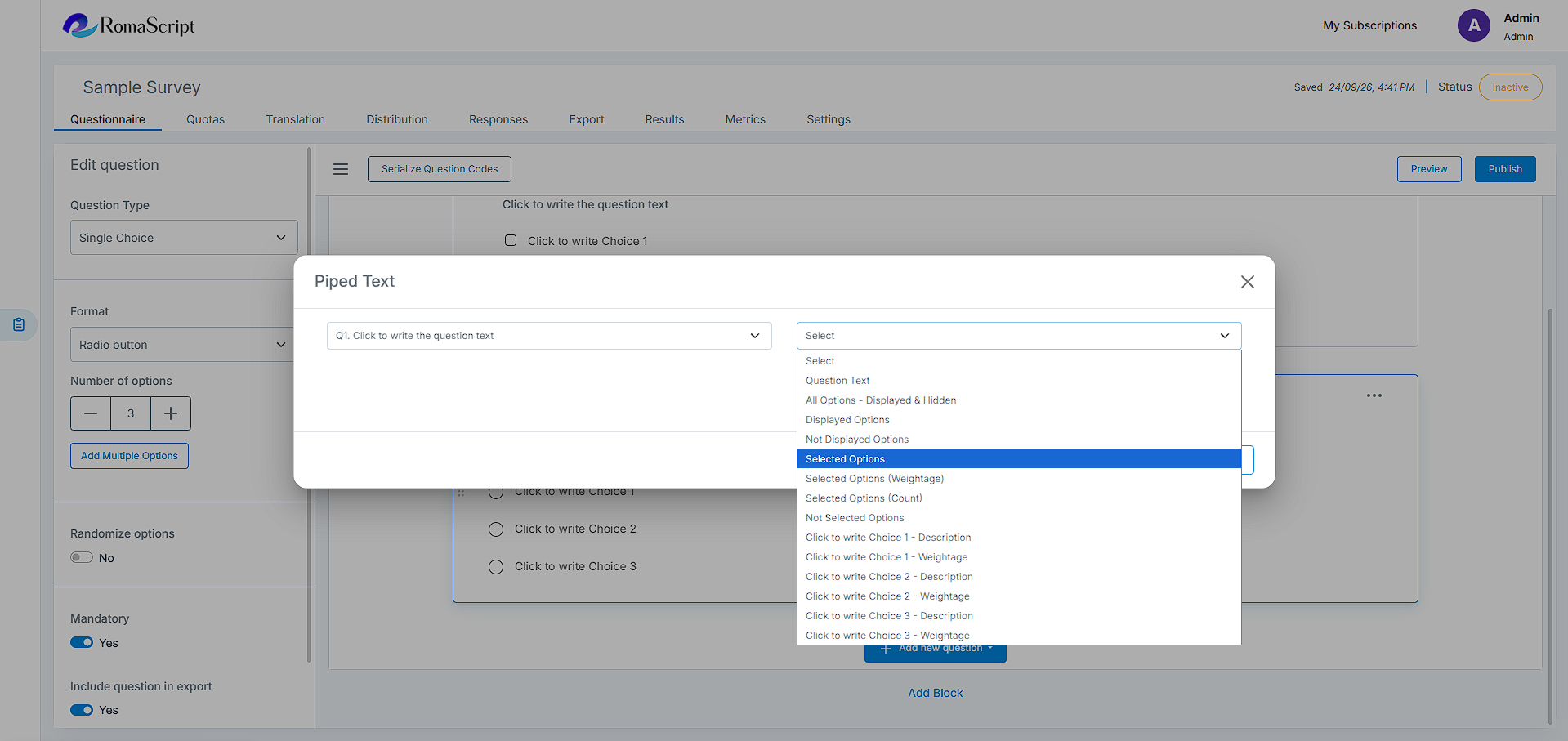
- Select Piped Text
- Select the source question or response that needs to be inserted
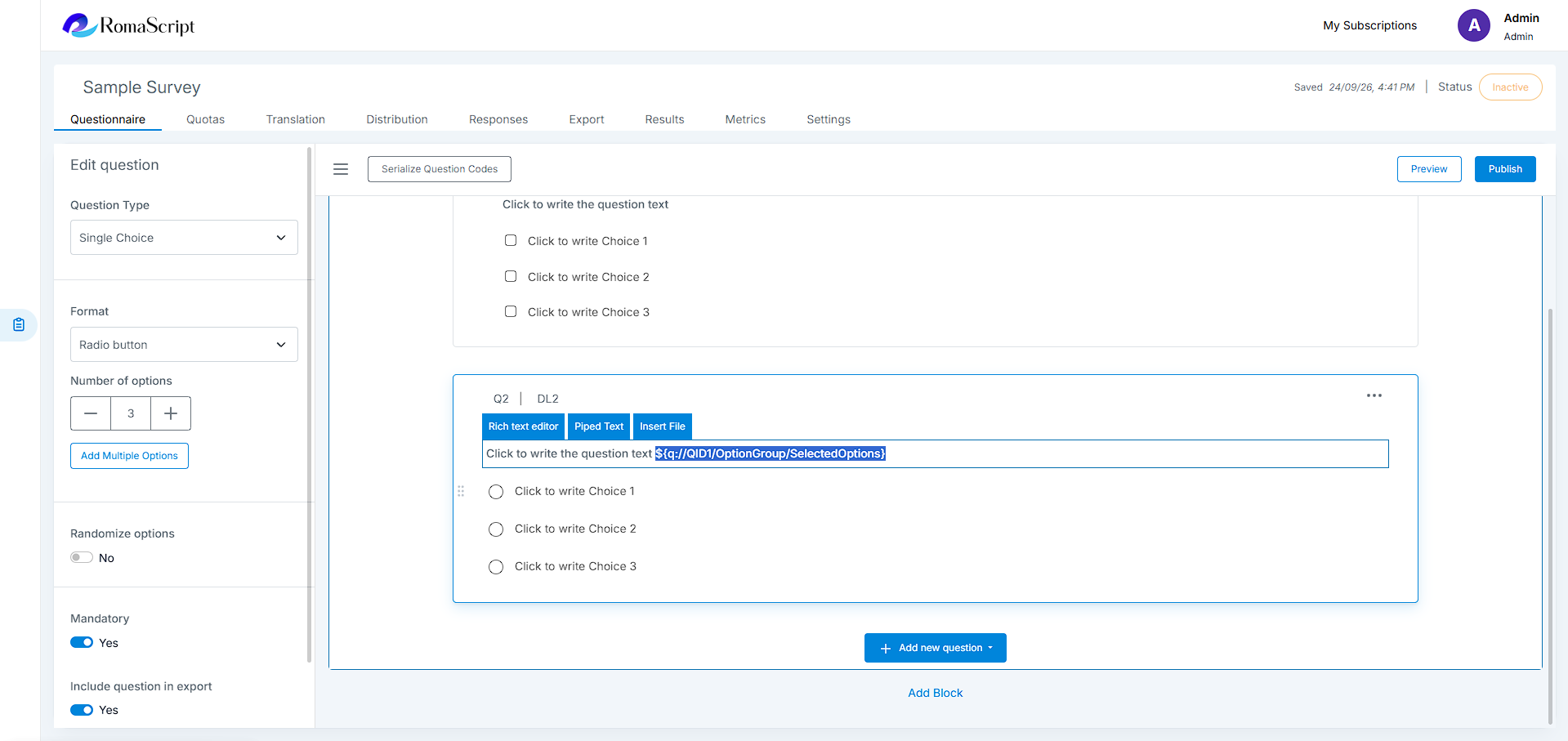
- Save the question
During response collection, RomaScript replaces the piped reference with the applicable response provided earlier by the respondent.
Use cases
- Reference a respondent’s name throughout the survey
- Include a product or brand selected earlier in a follow-up question
- Create dynamic and personalized question wording
- Make follow-up questions more contextual
5. Autocode
Autocode automatically assigns or selects an option based on a respondent’s response to a previous question. It can be used to convert an entered or selected response into a predefined category for use later in the survey.
Autocode questions are hidden by default, allowing the coding process to take place without displaying the coding question to the respondent.
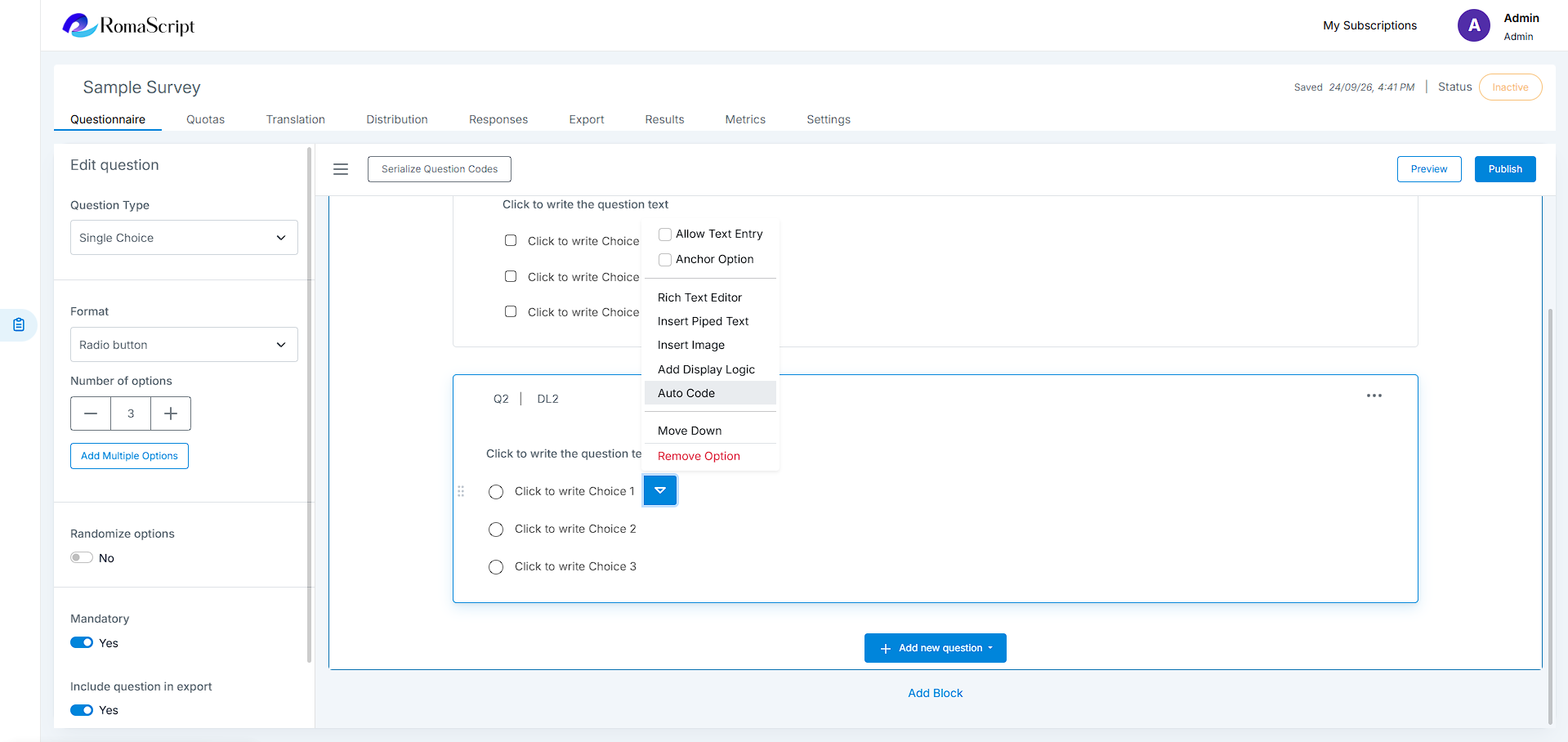
How to Apply Autocode
- Select the question where Autocode needs to be configured
- Select Autocode
- Select the source question whose response will be used for coding
- Define the conditions under which an option should be selected
- Map the applicable response or condition to the required option
- Save the Autocode configuration
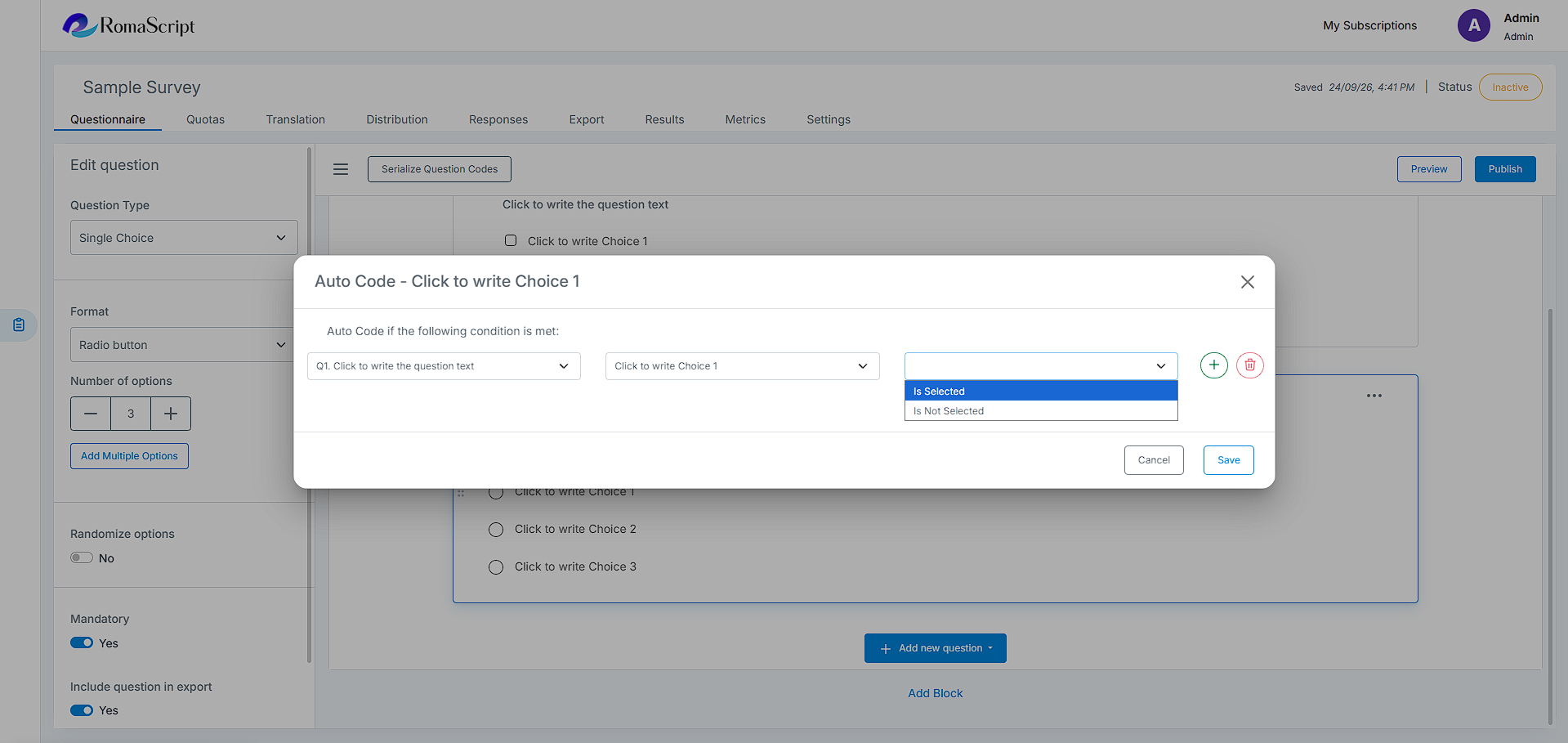
When the respondent completes the source question, RomaScript evaluates the configured conditions and automatically applies the corresponding code or option.
For example, a respondent may enter their age in one question. Autocode can then automatically select the corresponding age-group option in another question.
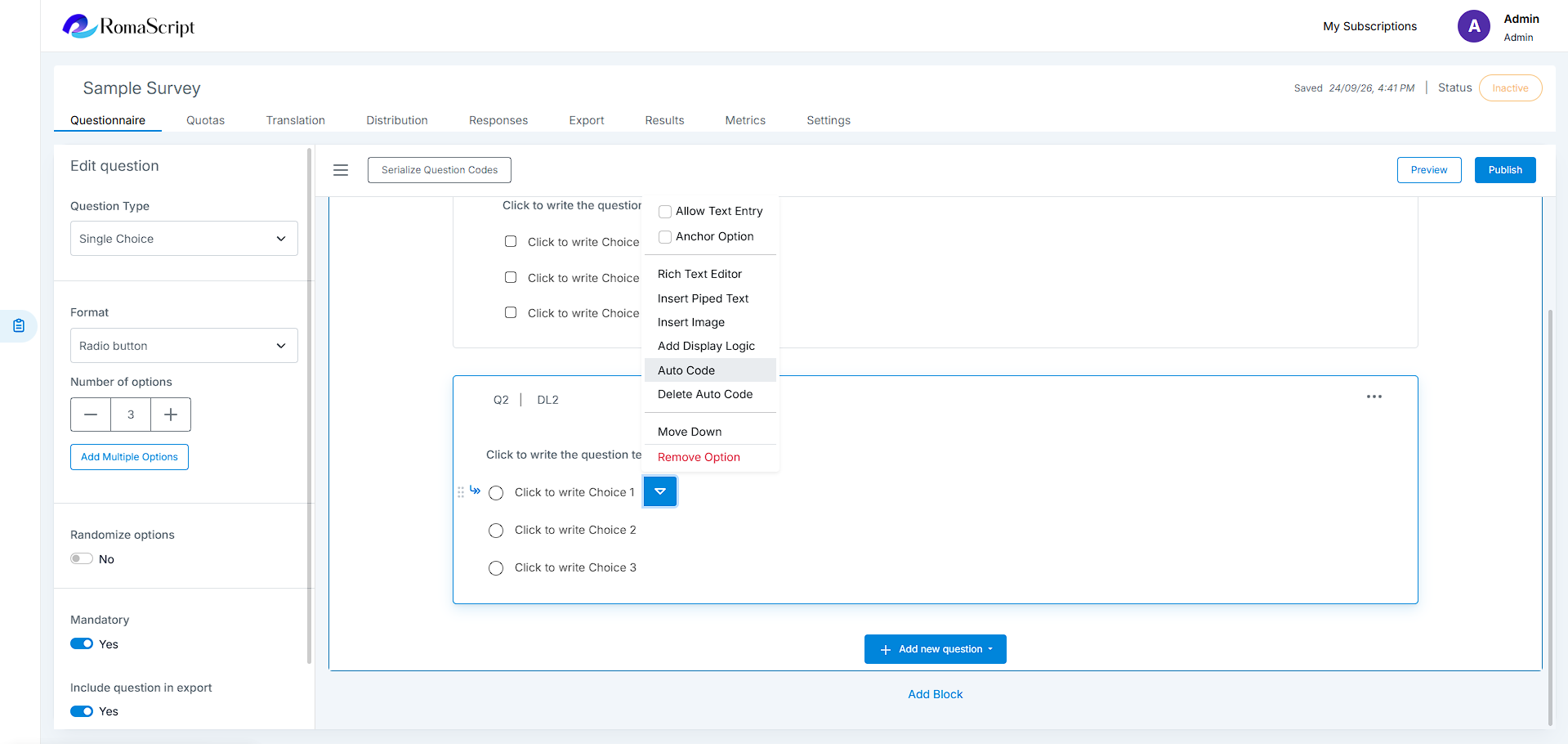
Use cases
- Convert an entered age into predefined age groups
- Categorize responses automatically based on a previous question
- Create hidden coding questions for survey processing
- Use calculated or categorized responses in later survey logic
6. Response Validation
Response Validation ensures that a respondent enters an acceptable response based on a condition or value from another question. It helps improve data quality by preventing invalid responses from being submitted.
Response Validation uses a source question to determine how the response entered in the current question should be validated.
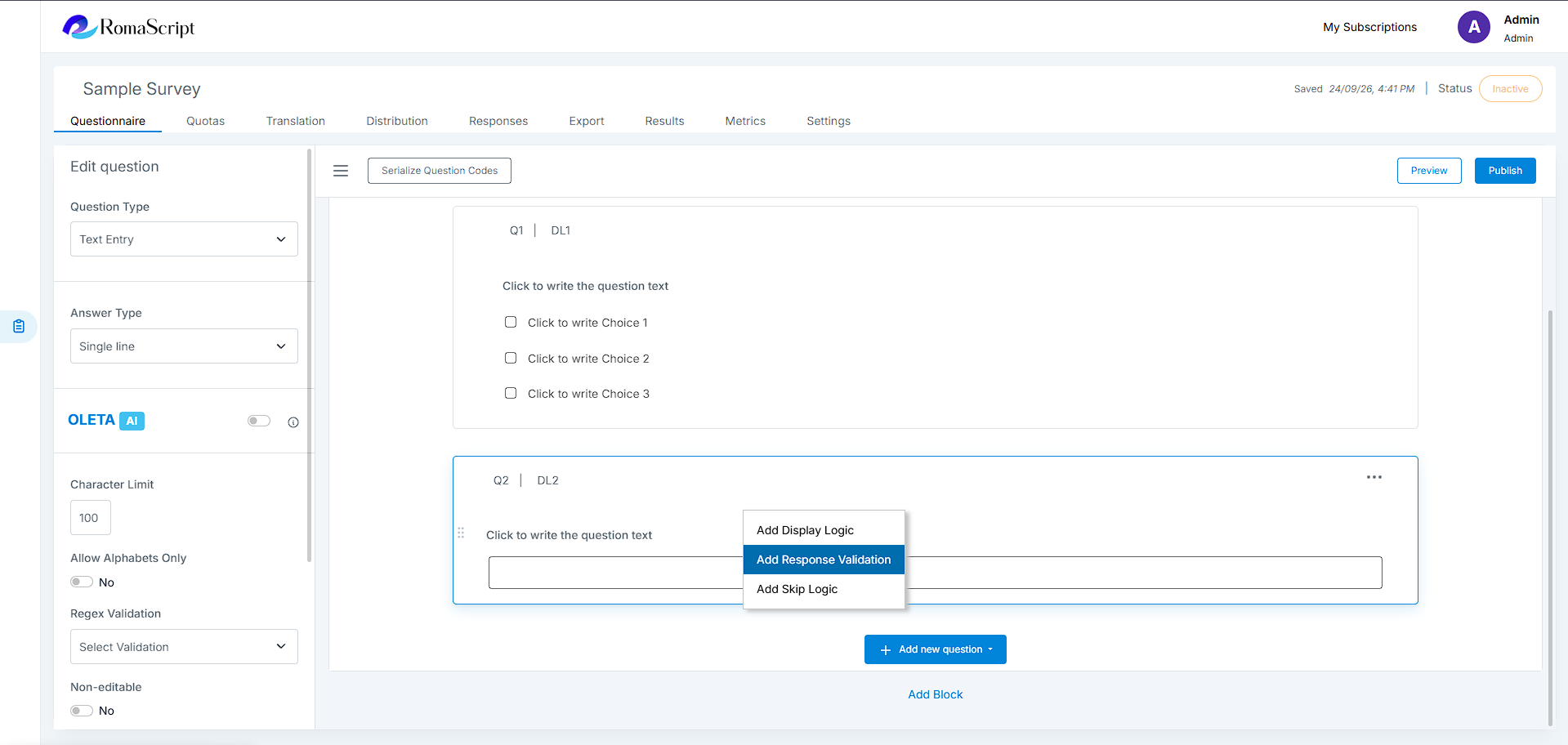
How to Apply Response Validation
- Select the Text Entry question where the response needs to be validated
- Open Response Validation
- Select the source question whose response will be used for validation
- Define the validation condition based on the source question
- Configure the value or rule that the current response must satisfy
- Enter or configure the validation message to be displayed when the response does not satisfy the rule
- Save the validation
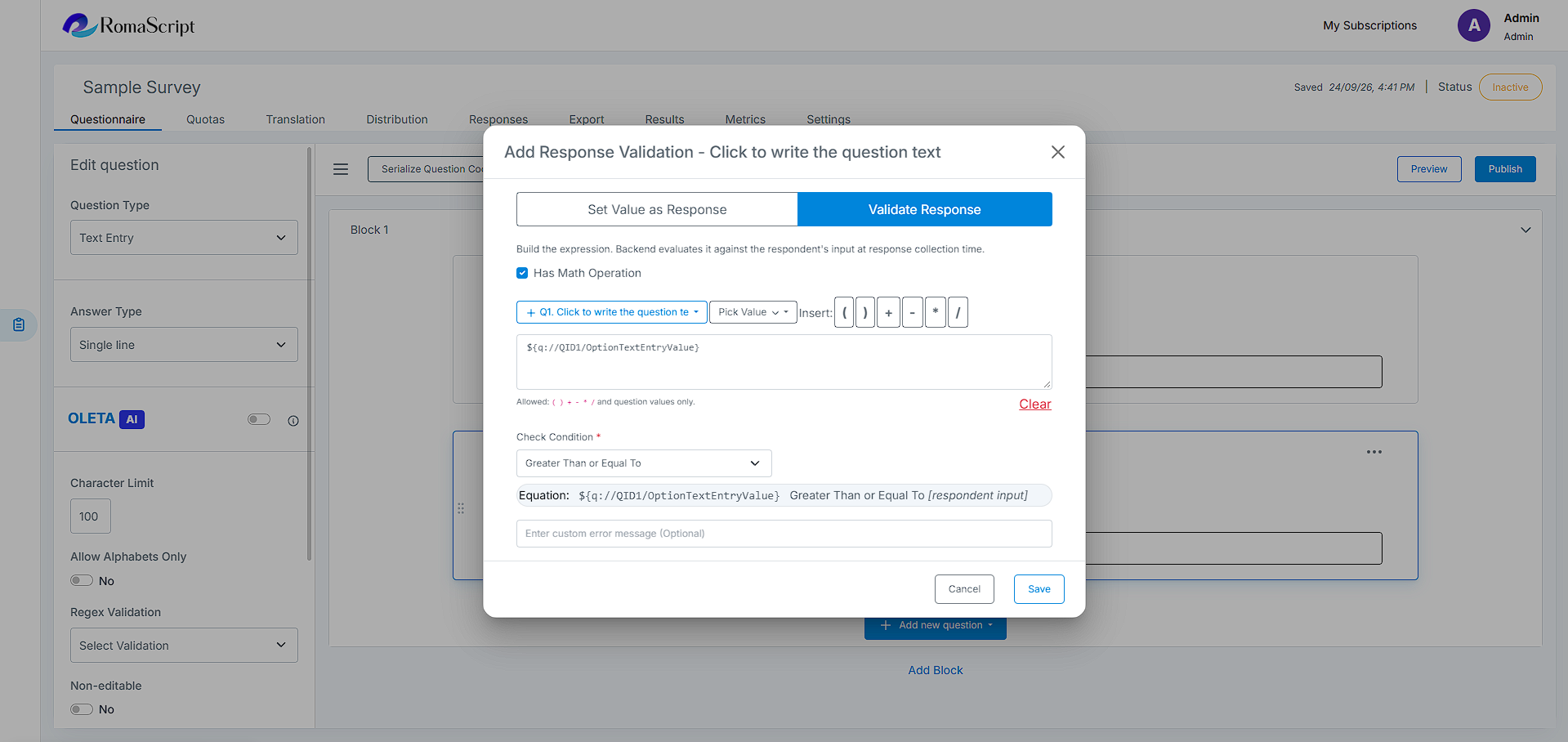
For example, if a respondent enters a value in Q1, the response entered in Q2 can be validated based on the value entered in Q1. The respondent will be asked to correct the Q2 response when it does not satisfy the configured validation rule.
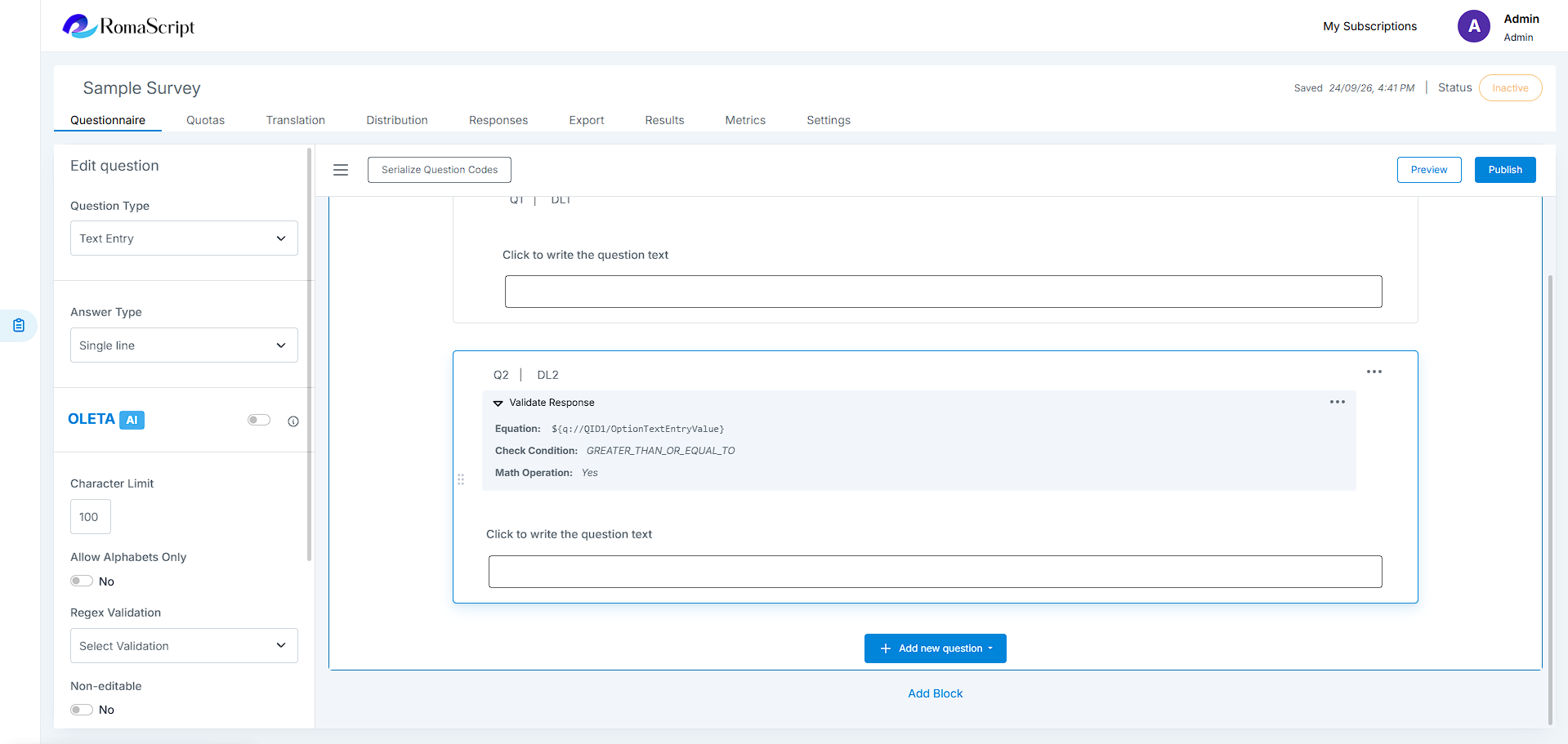
This allows validation rules to be based not only on fixed values but also on responses provided earlier in the survey.
Use cases
- Validate one response against a value entered in a previous question
- Ensure a follow-up number is within a range determined by an earlier response
- Prevent inconsistent responses between related questions
- Improve response accuracy and data quality
7. Set as Response
Set as Response allows a response from a Text Entry question to be used as the response for another applicable question. This can be used to populate or pass a previously entered value without requiring the respondent to enter the same information again.
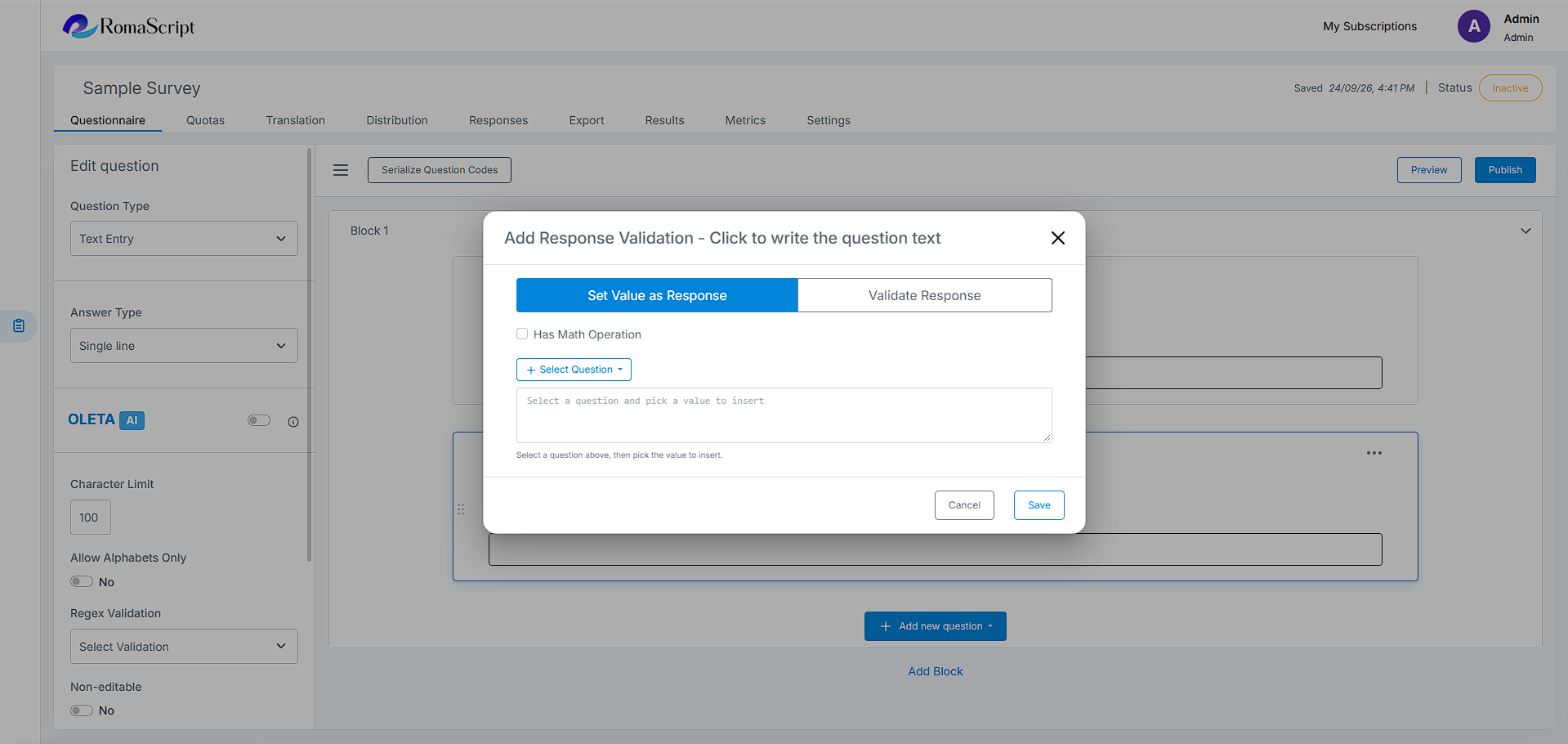
How to Apply Set as Response
- Select the question where the response needs to be set
- Select Set as Response
- Select the applicable Text Entry question as the source
- Configure the response relationship as required
- Save the configuration
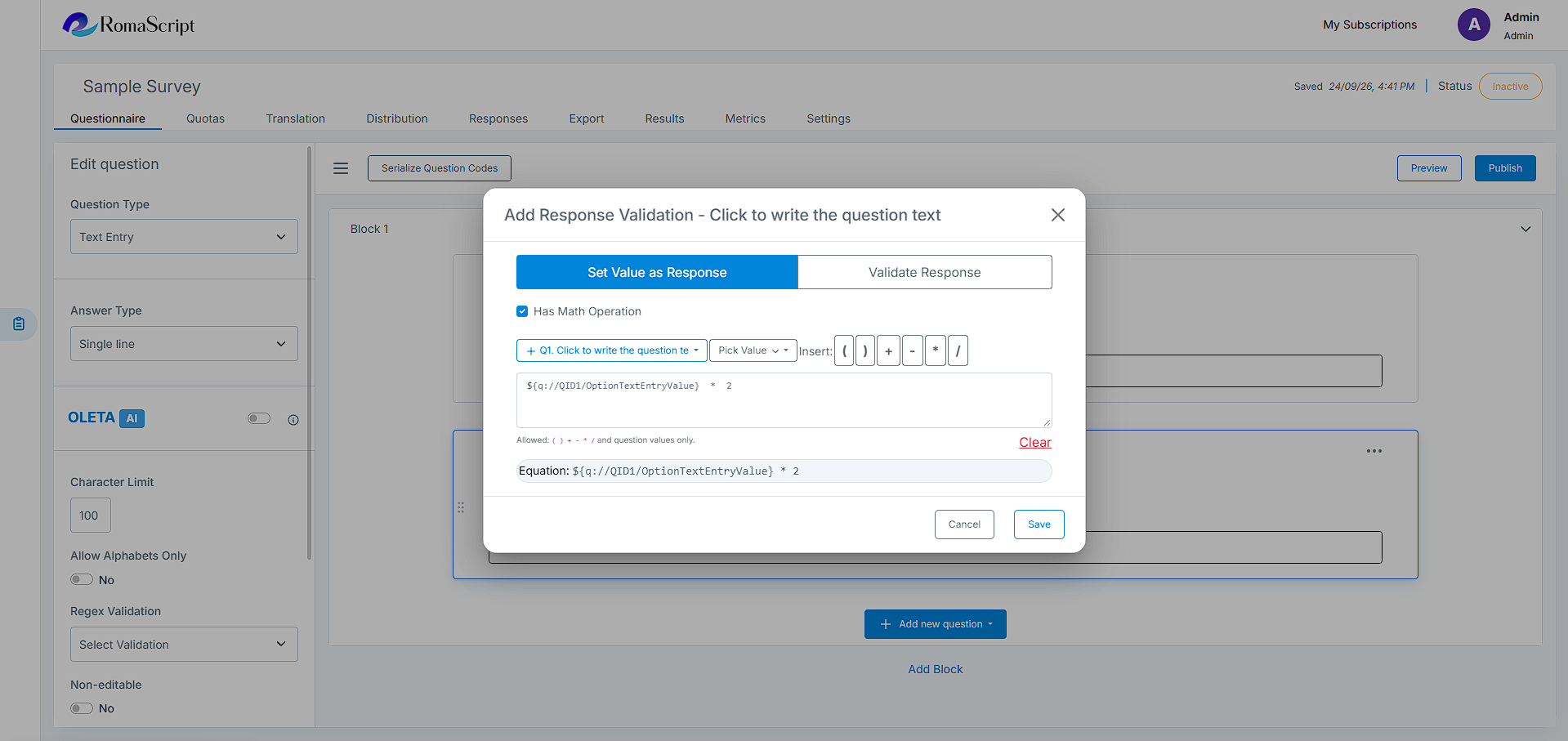
When the respondent provides a response in the source Text Entry question, RomaScript uses that response for the configured target question.
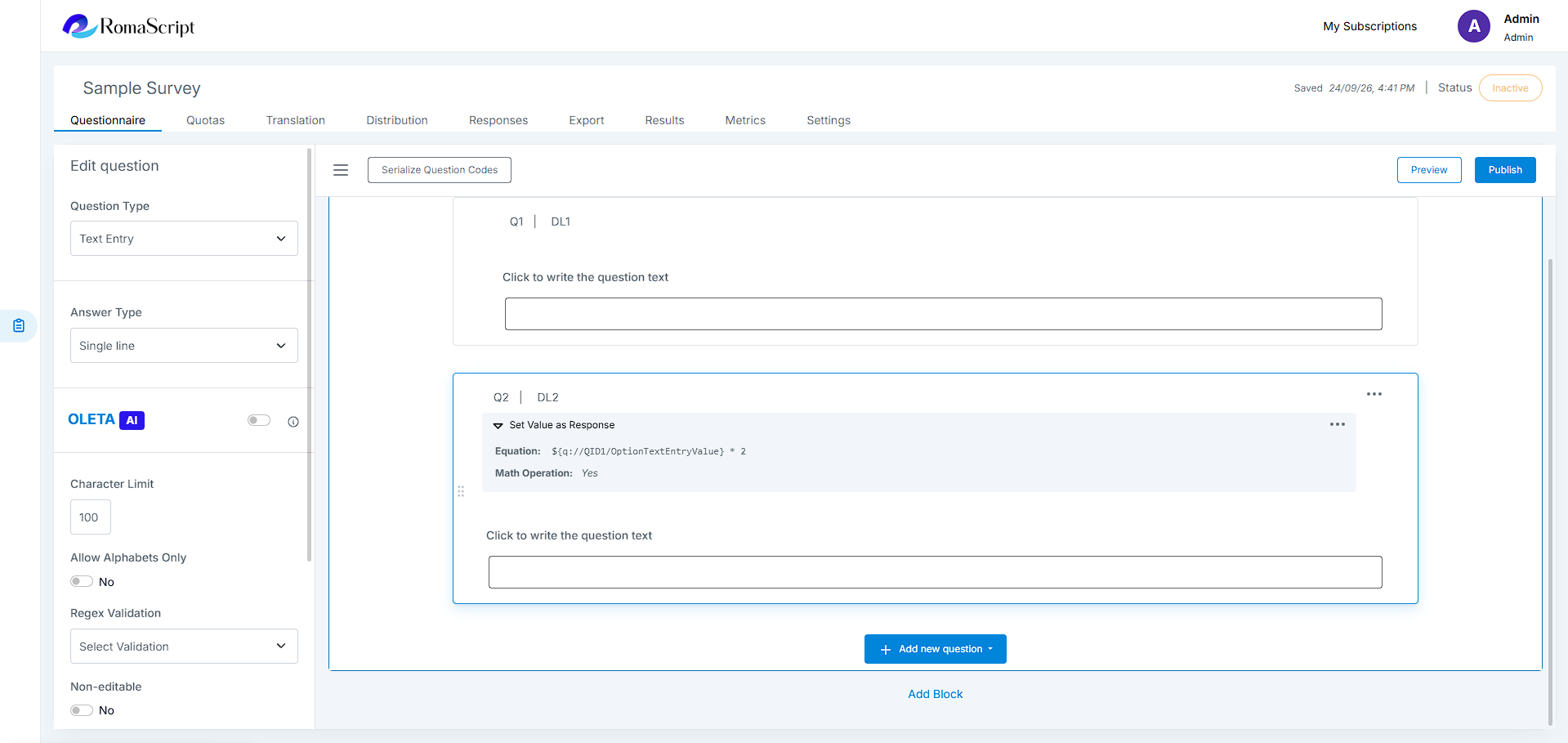
This can be used to reduce repetitive data entry and maintain consistency between related questions.
Use cases
- Reuse a value entered earlier in the survey
- Populate a related response automatically
- Avoid asking respondents to enter the same information multiple times
- Maintain consistency between related questions
8. Skip Based on Count
Skip Based on Count allows Skip Logic to be triggered based on the number of responses that satisfy a defined condition. This is useful when the survey path depends on how many options a respondent has selected or how many responses meet a specific criterion.
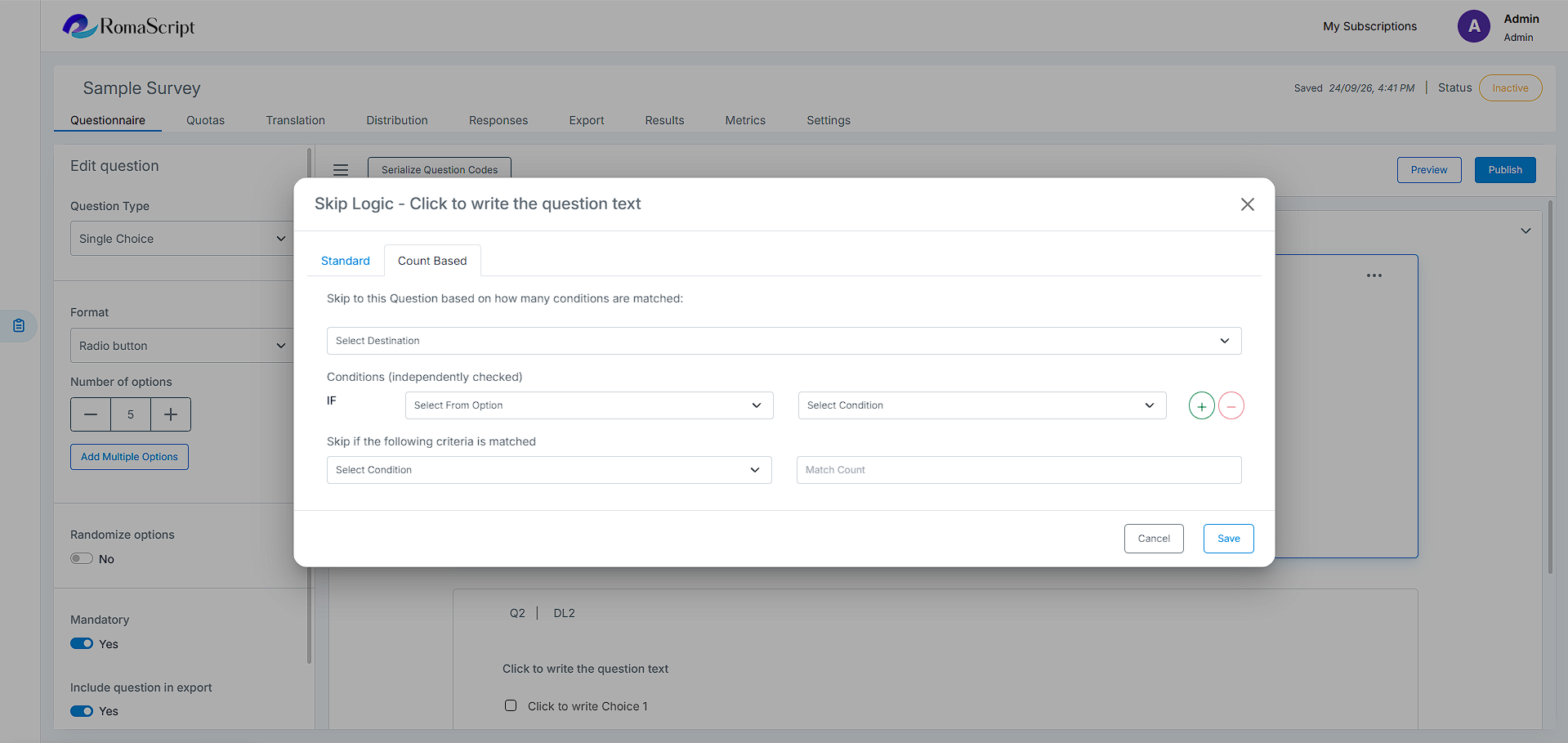
How to Apply Skip Based on Count
- Select the question where the Skip Logic needs to be applied
- Select Skip Logic and choose the count-based condition
- Select the source question
- Define the response or selection condition to be counted
- Specify the required count condition
- Select the destination question or End of Survey
- Save the Skip Logic
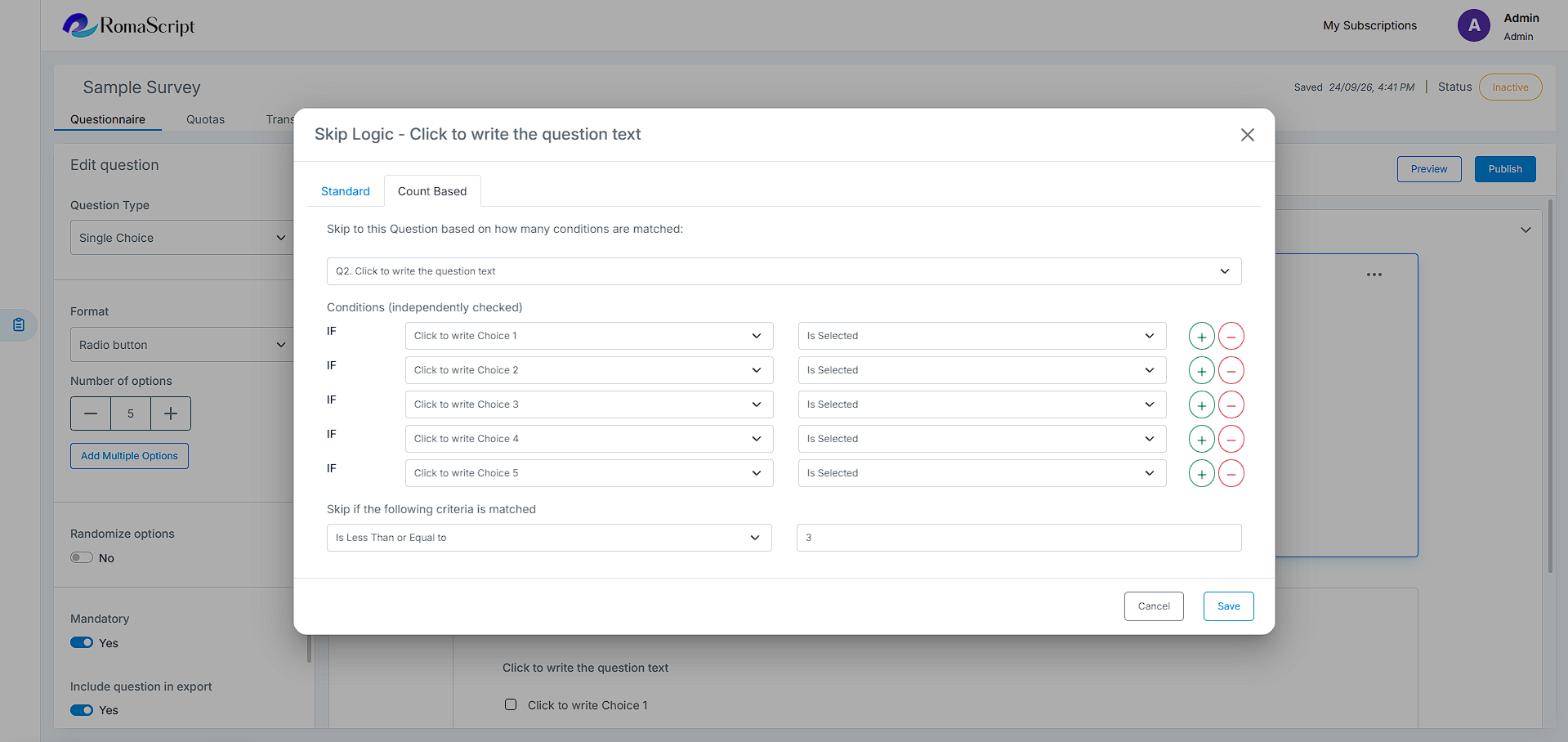
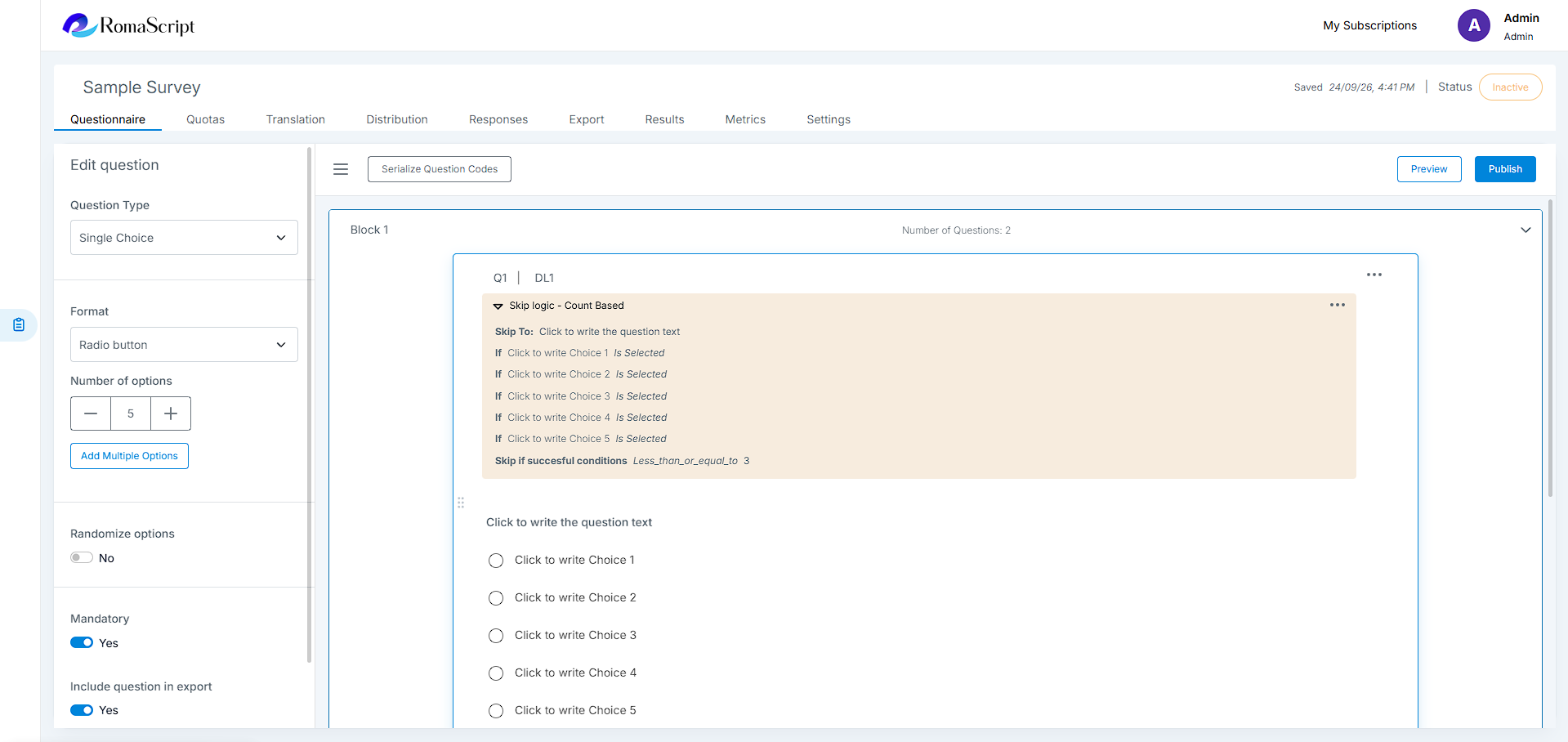
RomaScript evaluates the number of responses that satisfy the configured condition. When the count meets the defined criteria, the respondent is redirected to the configured destination.
For example, if a Multiple Choice question allows respondents to select several options, a count-based condition can be used to route respondents differently depending on how many options they selected.
Use cases
- Route respondents based on the number of selected options
- End the survey when a respondent selects fewer or more than the required number of choices
- Show additional questions when a respondent selects a specific number of options
- Create different survey paths based on response count
9. Logic Conditions
RomaScript provides different condition types depending on the question and logic being configured. These conditions allow survey programmers to build precise rules based on previous responses.
Multiple conditions can be combined using AND or OR to create more complex rules.