
Getting Started
Everything you need to sign up, build your first survey, and try AI Scripting to turn a plain-text questionnaire into a working survey in minutes.
Welcome to RomaScript
RomaScript is a powerful, yet intuitive survey programming platform designed for research agencies and brand owners to create, deploy, and manage online surveys with ease. Built with simplicity and efficiency in mind, RomaScript helps you collect high-quality data faster than ever before.
Why Choose RomaScript?
- Easy to Use: intuitive interface that gets you up and running in minutes
- Affordable: cost-effective pricing designed for agencies and brands of all sizes
- Fast Deployment: launch surveys in record time with our streamlined workflow
- Expert Support: dedicated in-house survey scripting team ready to help
- Made in India: proudly developed to meet the unique needs of Indian and global markets
Quick Start Guide
Get started with RomaScript in just a few simple steps. This guide will walk you through creating your first survey.
Step 1: Sign Up and Login
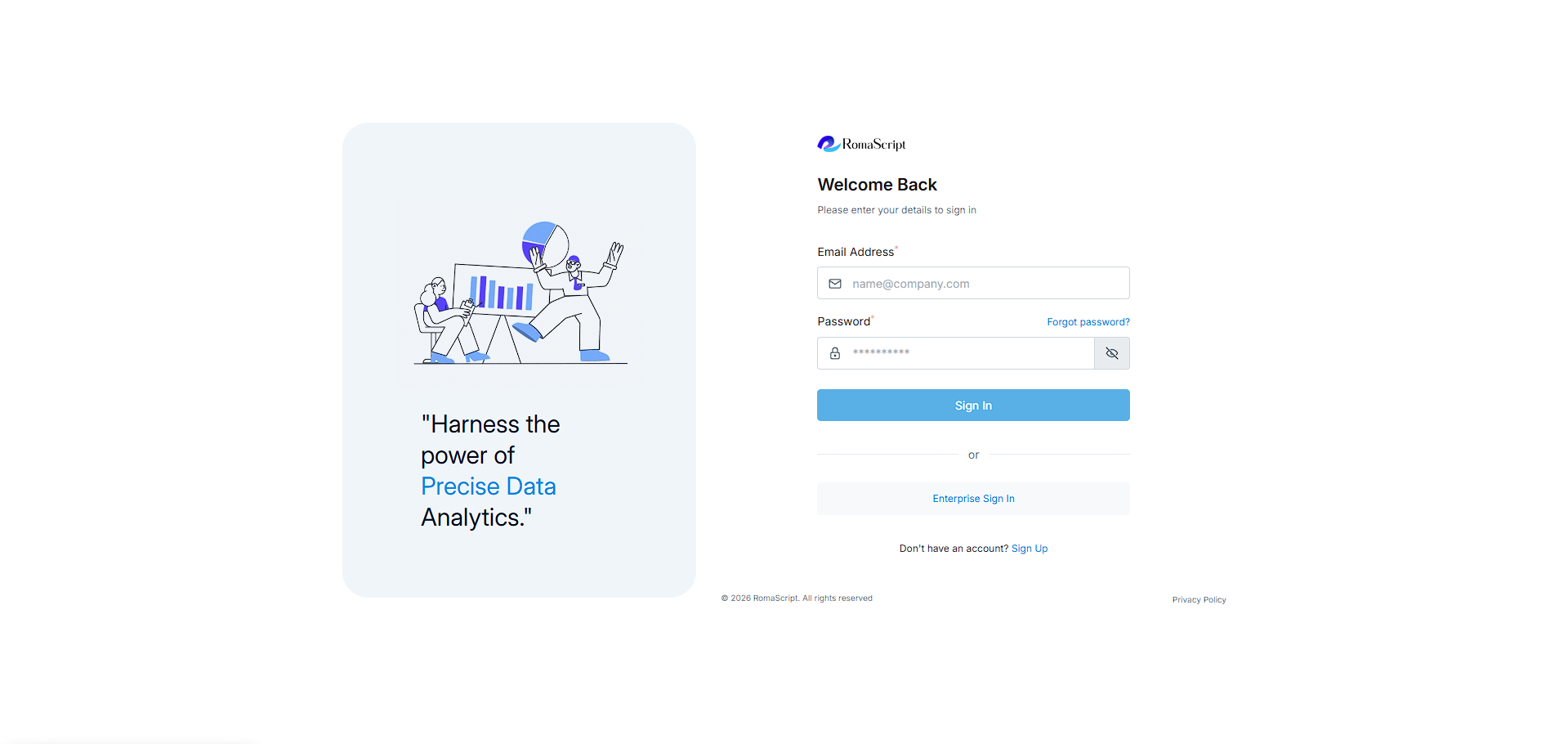
- Open the RomaScript tool at app.romascript.com
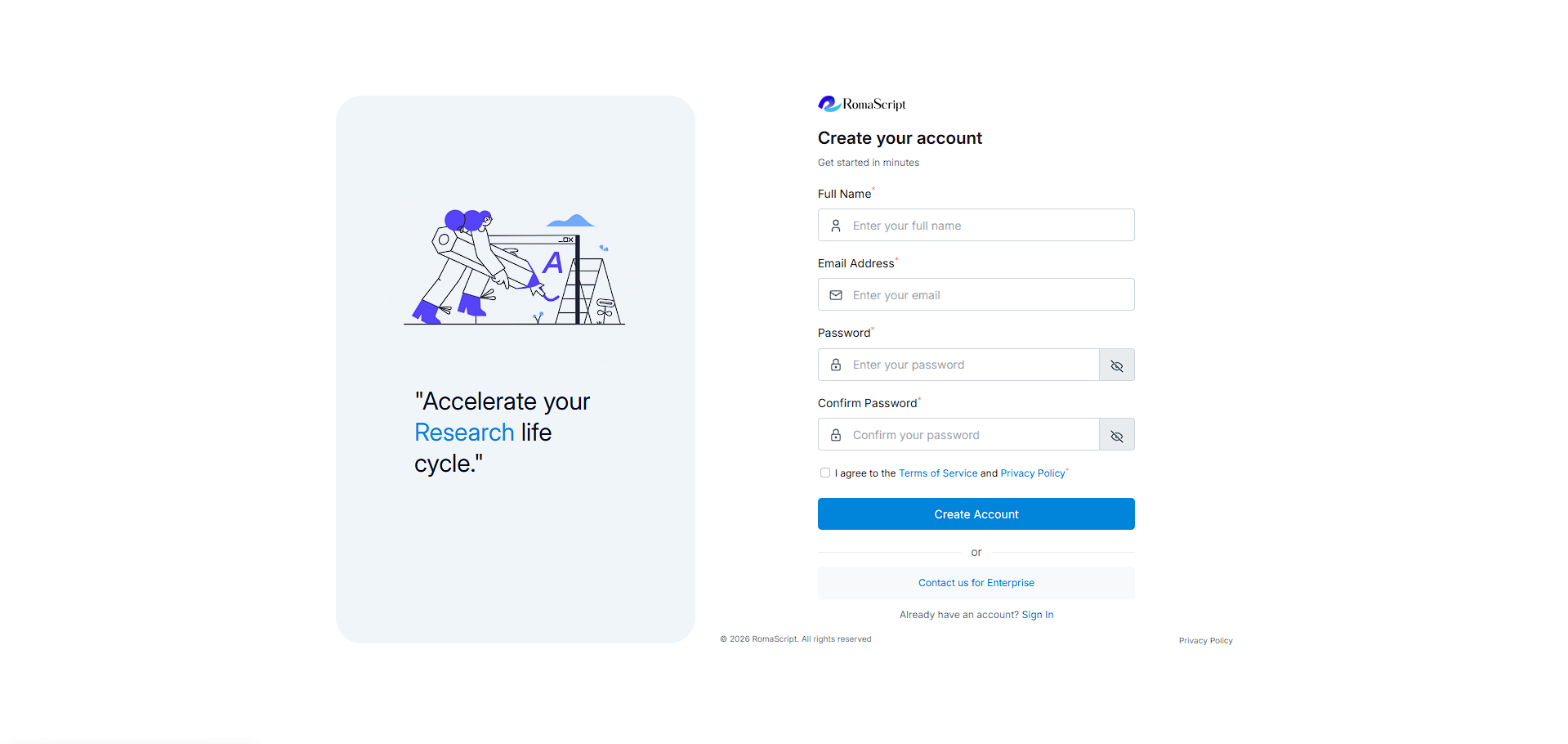
- If you are using the tool for the first time, go to Create an Account
- Fill in the required fields and click ‘Create Account’
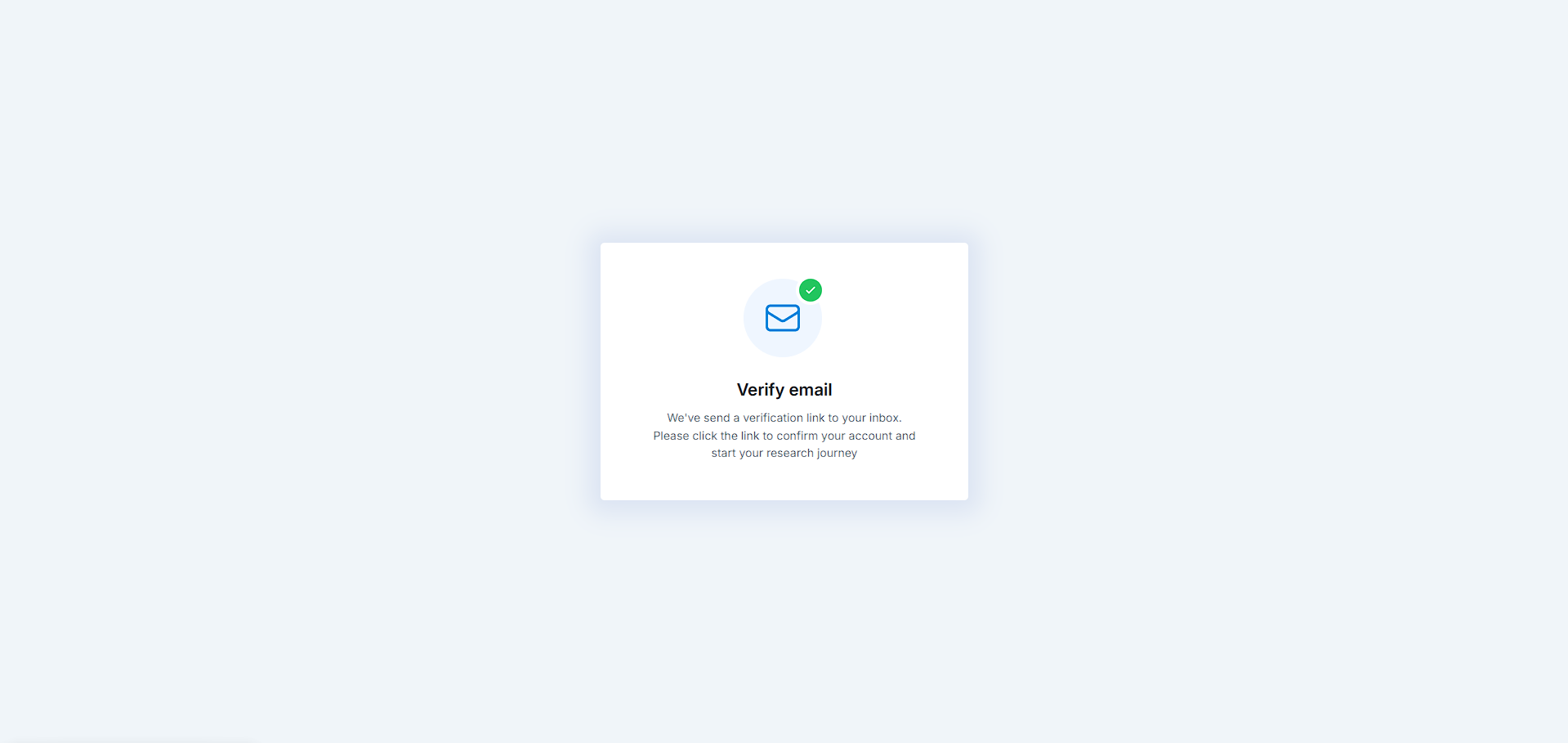
- A verification mail will be sent to the email address. Open the mail, click the link and verify
- After completing the verification, go to Login and enter your credentials to log in
Step 2: Create a New Survey
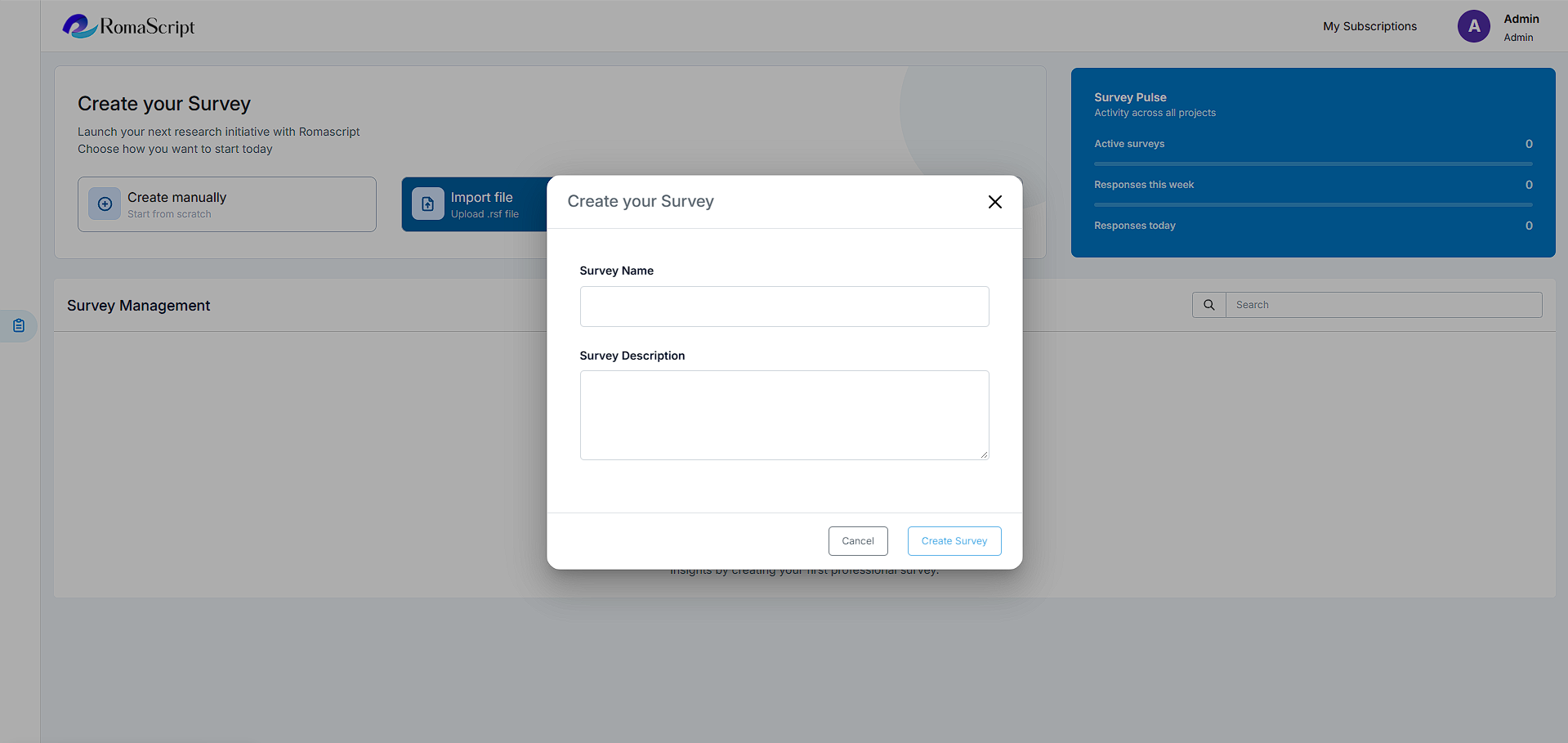
- Click on the ‘Create New Survey’ button
- Enter your survey name and description
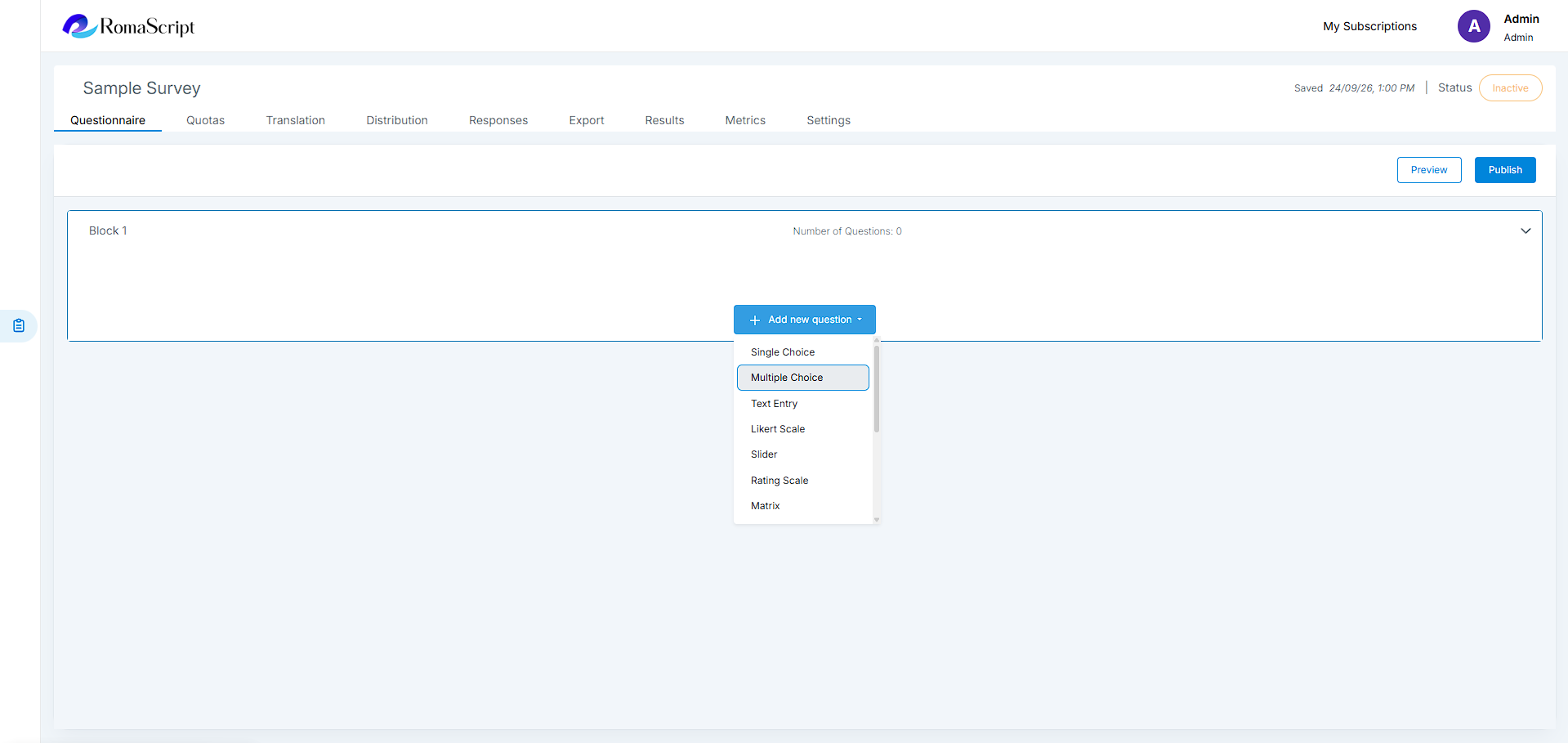
Step 3: Add Questions
- Click ‘Add New Question’ to insert a new question
- Select your desired question type from the dropdown menu
- Enter your question text and configure response options (if applicable)
- Apply any validation rules, conditional logic or required settings
Step 4: Test Your Survey
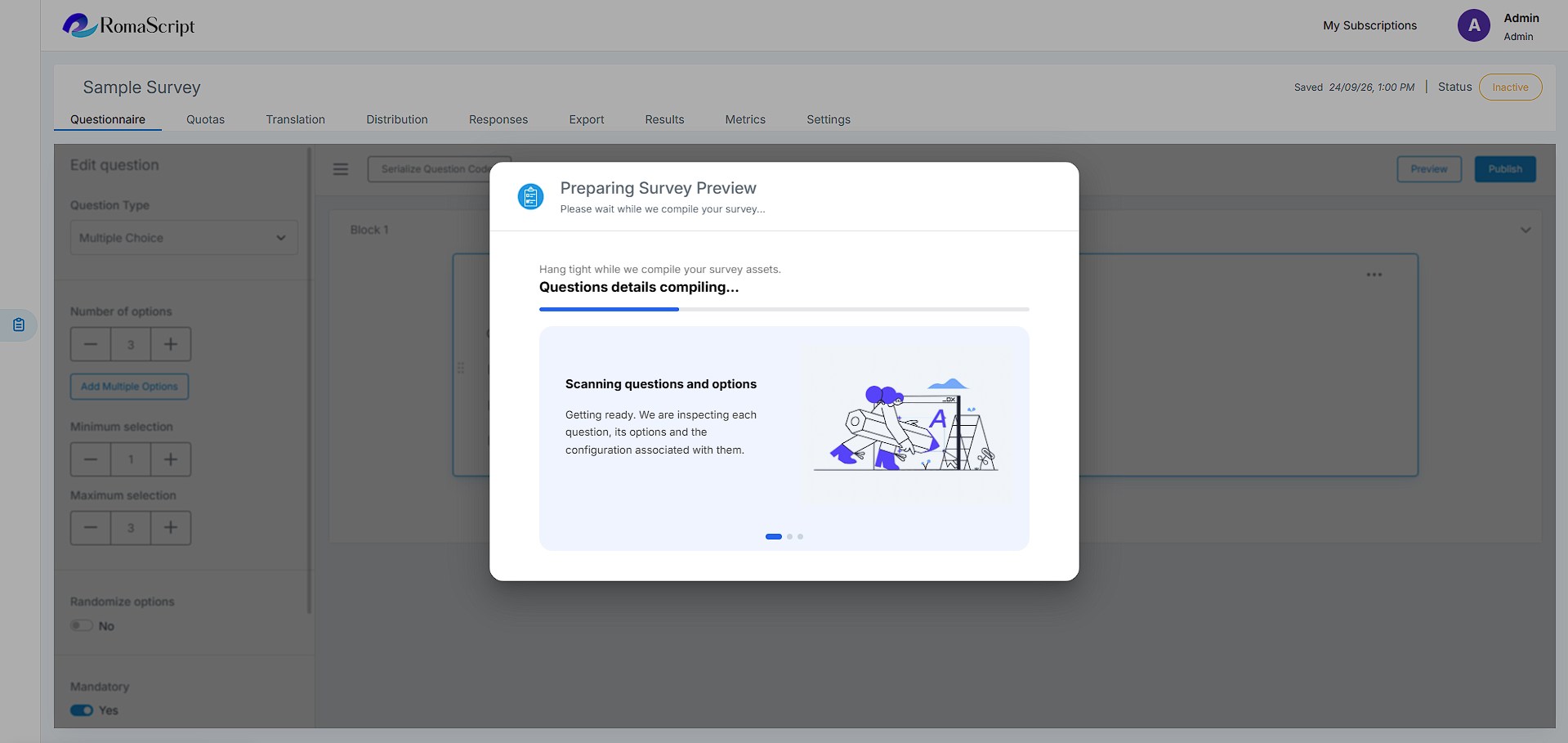
- Click ‘Preview’ to test your survey flow
- Complete a test response to verify logic and question display
- Make any necessary adjustments
Step 5: Launch & Distribute
- Click ‘Publish’ to launch your survey
- Copy the survey link or use distribution methods
- Monitor responses in real-time from Metrics
AI Scripting
AI Scripting allows you to turn a questionnaire entered or pasted in natural language into a structured RomaScript survey. It can build the survey structure, including blocks, questions, response options, question types, and question numbering, reducing the time required to create a survey manually.
How to Use AI Scripting
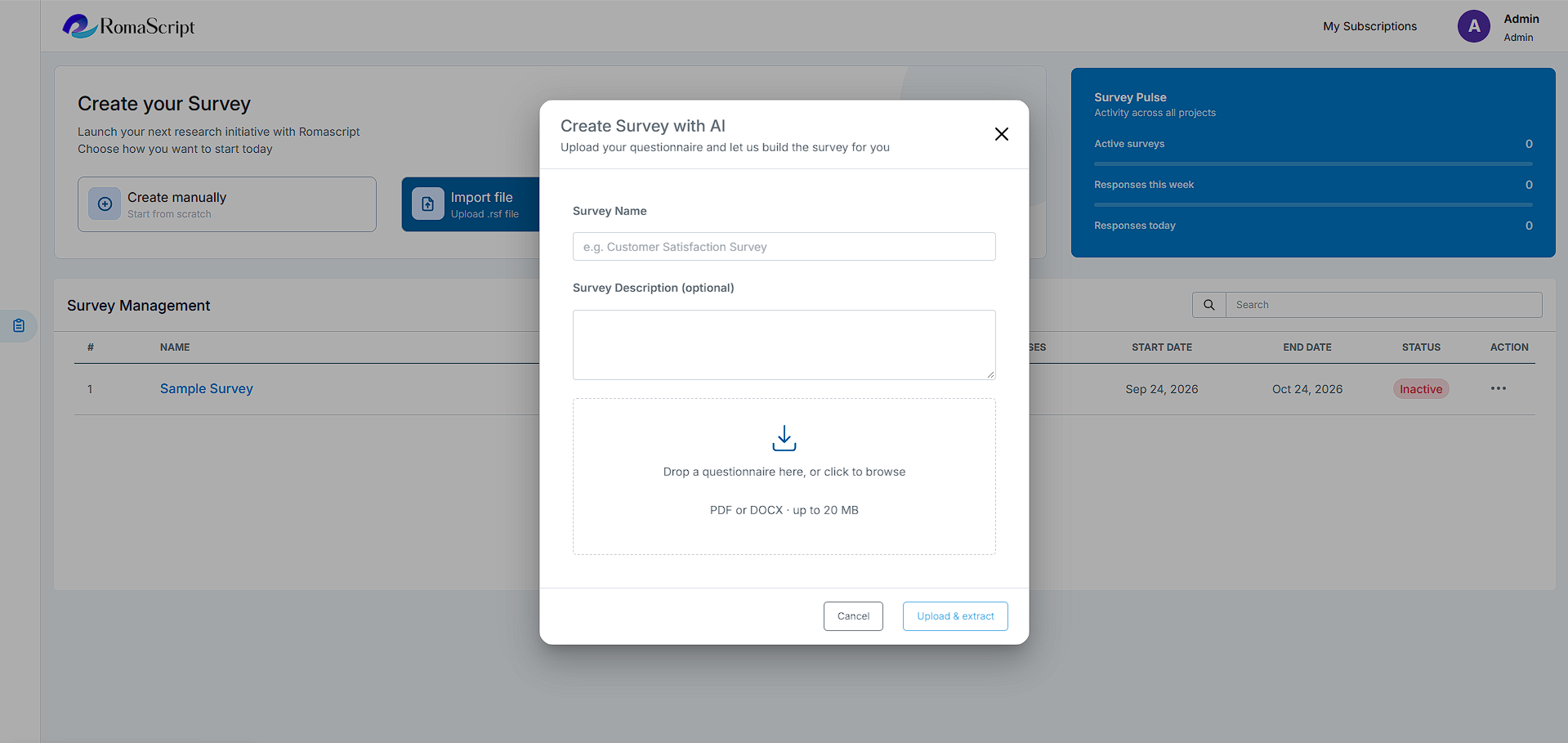
- Log in to RomaScript and open the Home page
- Open AI Scripting from the available survey-creation options
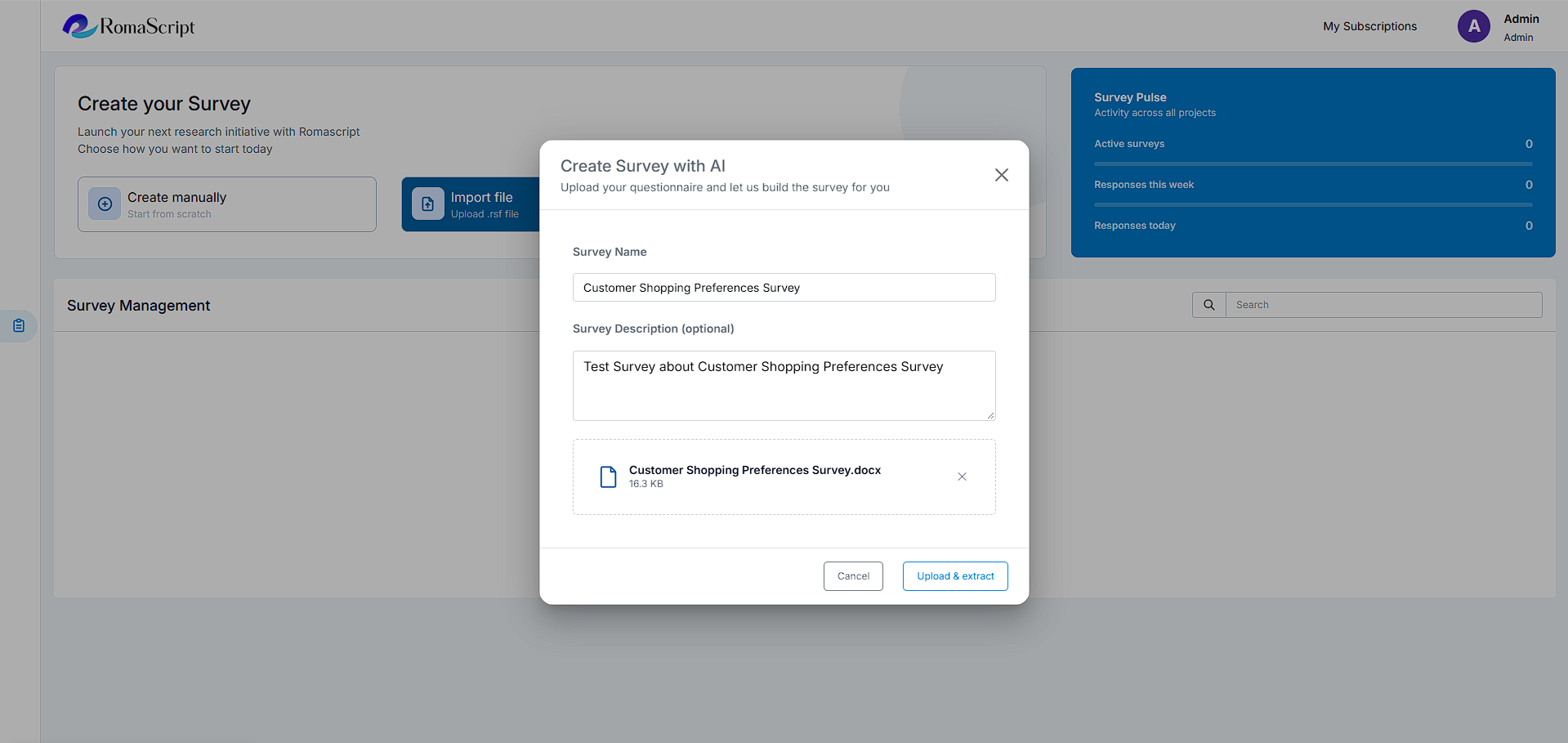
- Enter or paste your questionnaire into the AI Scripting input area
- Start the AI Scripting process to generate the survey
- RomaScript creates the survey structure, including blocks, questions, options, question types, and question numbering
- After generation is complete, review the generated survey before continuing
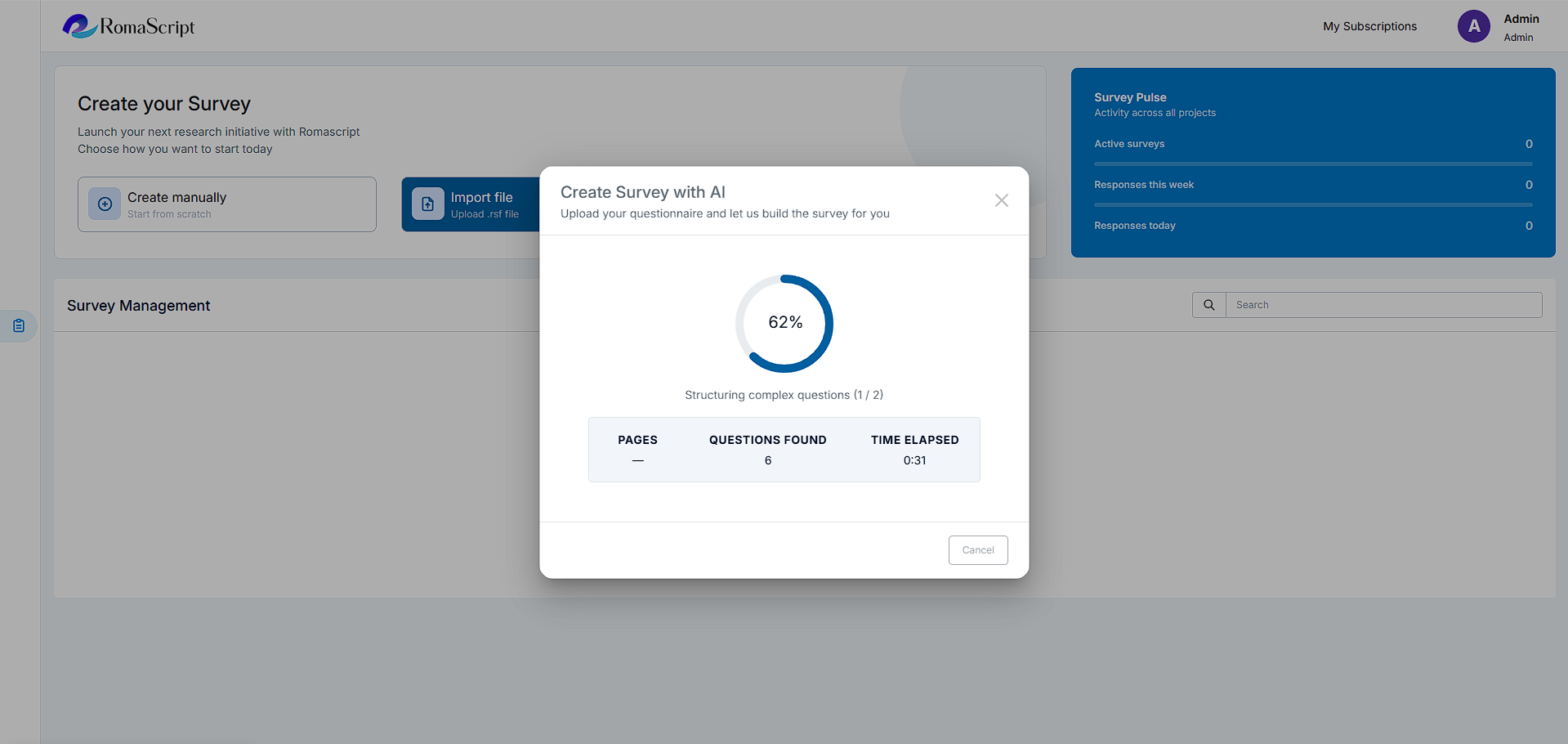
Review the Generated Survey
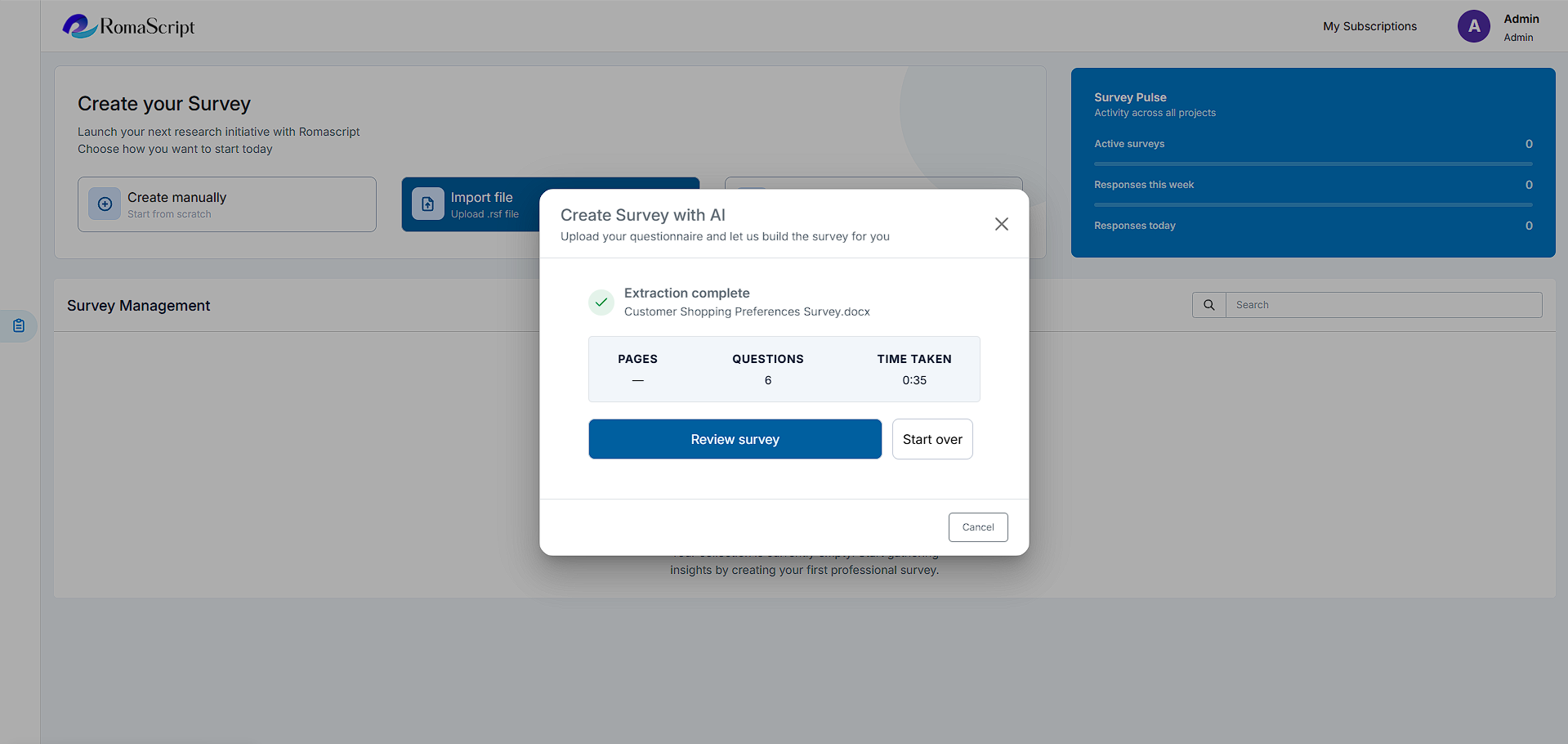
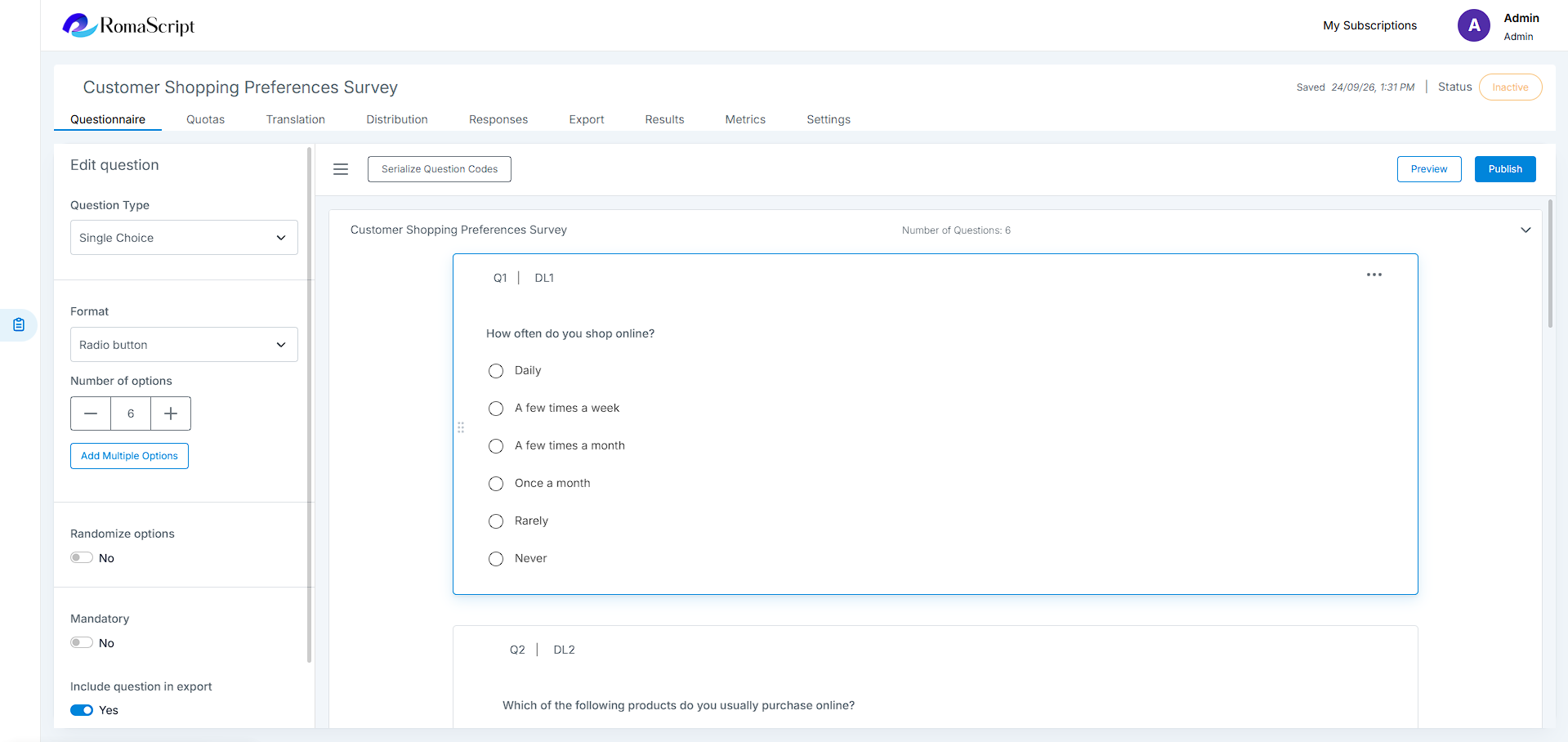
The generated survey appears as a fully built and editable survey in RomaScript, similar to a survey created manually or imported from a file.
When the generation process is complete, a confirmation window provides two options:
- Review Survey – opens the generated survey in the survey builder for review and further editing
- Start Over – returns to the initial AI Scripting screen so you can enter a new questionnaire
AI Scripting Behavior
- The questionnaire can be entered into or pasted directly into AI Scripting
- RomaScript builds blocks, questions, response options, question types, and question numbering from the provided questionnaire
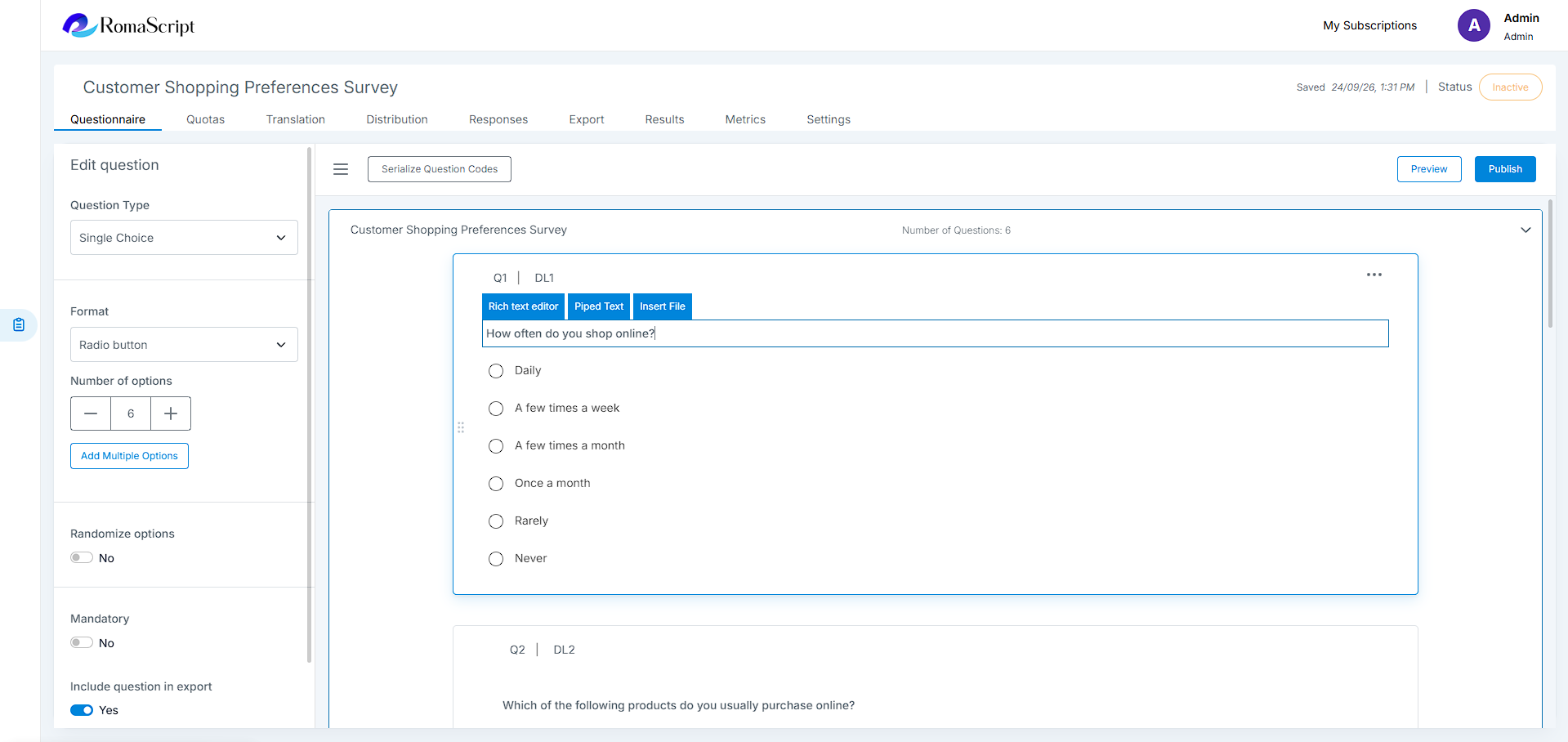
- The generated survey remains editable in the survey builder
- If a question type is not recognized, RomaScript adds Text Entry by default
- Errors encountered during the process are displayed so they can be addressed
- Review the generated survey and configure any additional survey logic or option-level settings required for the study before publishing
Use Cases
Use cases
- Convert an existing questionnaire into a structured RomaScript survey
- Build survey drafts faster from a prepared questionnaire
- Create survey blocks, questions, options, and question numbering automatically
- Start with an editable survey structure and continue with manual configuration